
Seats, roles and permissions in plain words#
Three ideas decide what a person can do in Hubtoll. They are often mixed up, so here they are side by side.
- A seat lets a person in through the door of a product. No seat on Human Resources means no Human Resources, whatever else they hold.
- A permission is one small ability, such as "see every leave request" or "create an invoice".
- A role is a named bundle of permissions. HR Officer might hold five permissions. You give the role to a person and they get all five at once.
A person can hold more than one role. Their access is everything from all their roles added together. Roles never take access away from each other. If you want someone to lose an ability, take the role that gives it away from them.
Seats are explained in Seats, plans and subscriptions. This guide is about roles. Every single permission is listed in the Permission reference.
Two roles every company already has#
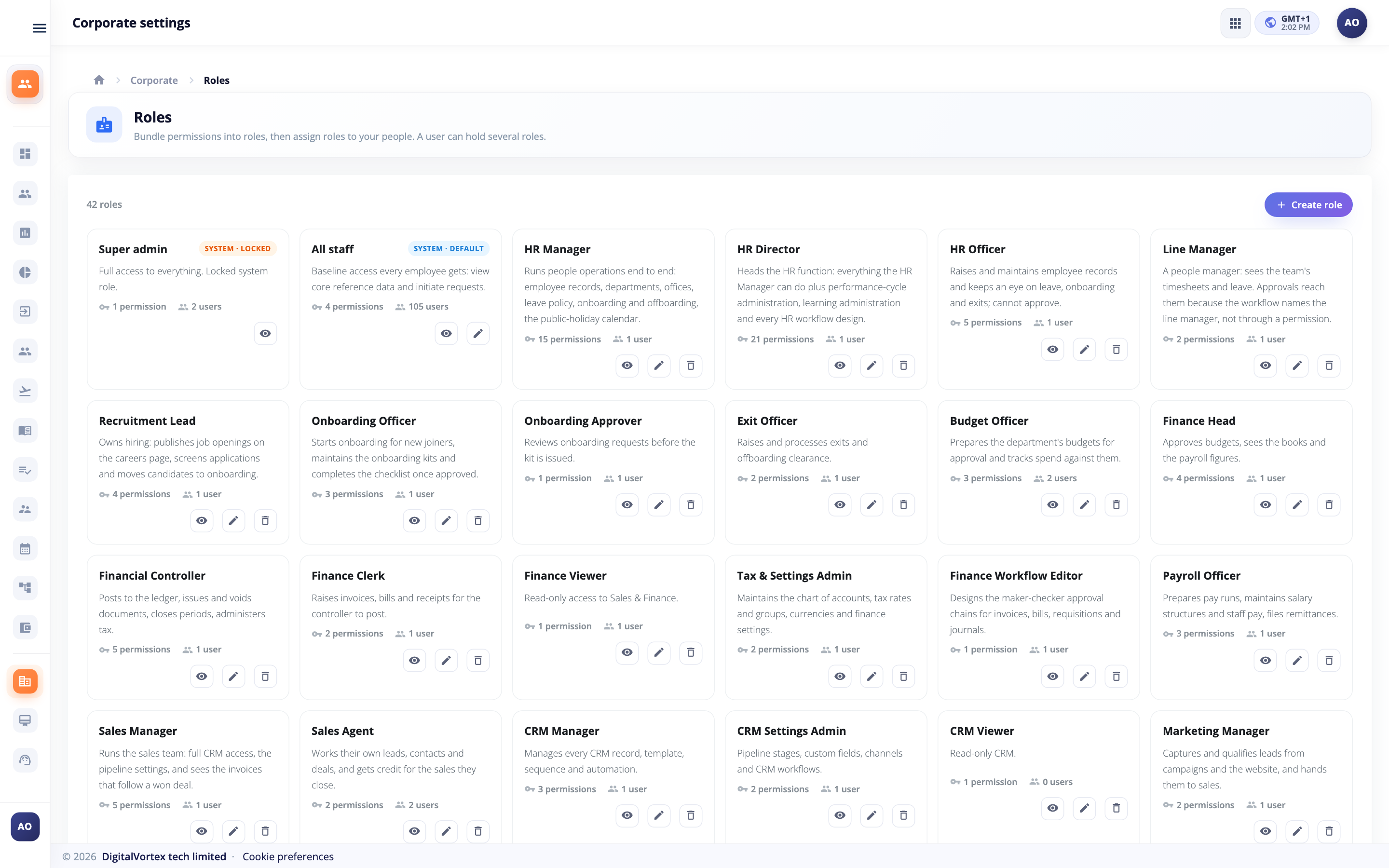
When your company is created, Hubtoll makes two roles for you. You will see them on the Roles page with a small badge.
| Role | Badge | What it means |
|---|---|---|
| Super admin | System · Locked | Full access to everything in the company. Whoever created the company holds it. You cannot edit it, you cannot delete it. You can open it to look. |
| All staff | System · Default | The everyday baseline. Hubtoll gives it to every person you add. You can change what it grants and its description, but not its name, and you cannot delete it. |
All staff is small on purpose. It lets people read the plain lists they need to fill in forms: departments, office locations, leave types and public holidays. It does not let people read other people's records. Everyday things like asking for your own leave or logging your own time do not need any role at all. See Leave management for an example.
Open the Roles page#
Open Corporate managementRoles from the left menu.
You will see one card for each role. Each card shows the name, a short description, how many permissions it holds and how many users hold it. A role given to departments also shows how many departments. Click a card to open the role.
On each card there are small icon buttons. Edit opens the editing form. Delete (a bin) removes the role. System roles have no bin. Super admin has no pencil either.
If you hold View roles, you can look at everything but you will not see Create role or the edit and delete buttons.
Only three things open this page: Manage roles, View roles and Super admin. No module permission, no Company read-only, and no product administrator (such as CRM full administrator) reaches it. Roles hand out every other permission, so they are kept under their own key.
Create a role#
- Open Corporate managementRoles and click Create role.
- Type a Role name, for example HR Officer. The name must be different from your other roles.
- Add a Description (optional) that says what the role is for. Future you will be glad of it.
- Under Permissions, switch on what the role should do. Permissions are grouped by product and module.
- Each group has its own switch at the top to turn the whole group on or off.
- The count beside each group, for example 3/11, shows how many are on.
- The line at the top, for example 5 selected, shows the total.
- Click Create role.
Reading the permission list#
Each line in the picker is a plain sentence, such as "View roles and their permissions. No changes." Most modules follow the same pattern, so once you learn it you can read any of them:
| Kind | What it lets a person do |
|---|---|
| Read-only | See the whole company's records in that module. Change nothing. |
| Editor | Create, change and delete records in that module. |
| Initiator | Start a request, such as raising a budget. |
| Workflow editor | Design that module's approval chain. See Approvals and workflows. |
| Settings editor | Change a module's setup, such as leave types. |
Things that go wrong#
- "A role with that name already exists": pick another name. Capital letters do not make a name different.
- "A role name is required": the name box was empty.
- "Only a Super admin can create or assign a role with full access": you tried to include the Super admin permission, and you are not a Super admin yourself. Ask one.
Change or delete a role#
To change a role, click the Edit icon on its card, or open the role and click Edit role. Switch permissions on or off and click Save changes.
The change reaches everyone who holds the role. A person who is already signed in gets it the next time their session refreshes, which takes up to about 15 minutes. Signing out and back in applies it at once.
To delete a role, click the Delete icon. Hubtoll asks Delete role? and warns that people who held only this role will lose its access. You cannot undo it.
Changes go through approval#
Unless you are a Super admin, every change you make to roles is sent for approval instead of happening straight away. That covers creating, editing and deleting a role, adding or removing people and departments, and choosing a person's roles. This is the control ISO/IEC 27001 asks for: nobody can widen their own access, or anyone else's, on their own say-so.
What you see:
- The Roles page says your changes need approval. When you save, Hubtoll says "Sent for approval" and opens the change so you can follow it.
- Nothing changes yet. The role, the members and everyone's access stay exactly as they were until the change is approved.
- On the Roles page's All tab, every role card says Approved, or Awaiting approval with the kind of change waiting (Update or Delete); click it to open the change. New roles waiting to be approved are listed above the cards, because there is no role to show yet. A role with a change waiting shows it on its own page too.
- You can Withdraw a change you raised while it is still waiting.
Who approves: by default, anyone who holds the Super admin role. It is a normal approval workflow, so it can be changed under Roles › Approval Workflow (for example, add a second step, or route it to a named person). Only people with Manage role-change workflow (or a Super admin) can change it, and only they and holders of View role-change workflow see the button.
Approvers find waiting changes on their dashboard under Awaiting your approval, and on the Roles page's Awaiting me tab. Each row says whether it is a New role, an Update or a Delete. Both tabs have their own Filters and refresh button, and load more as you scroll.
- You cannot approve your own change. It is never shown in your own queue.
- Declining or sending back needs a reason. The person who asked sees it on the change.
- A Super admin's own changes apply at once. They hold every right already, so there is nobody above them to ask.
Look inside a role#
Click a role card. The detail page has three parts:
- The top shows the name, the description and counts of people, departments and permissions.
- Who Is in This Role lists the departments first, then the people. Each person shows when they were added. A small only role tag means this is the only role they hold.
- What This Role Can Do lists every permission in plain words, grouped by module. Hover over one to see its technical code.
If the list has more than five people, a search box appears above it.
Give a role to people#
There are two ways to connect people and roles. Use whichever starts from where you already are.
Start from the role#
- Open Corporate managementRoles and click the role.
- Click Add members.
- On the People tab, search by name or email and switch on everyone who should get the role. Select all and Select all matches save time. The count shows how many you picked.
- Click the button at the bottom. It reads Add 3 people, or whatever you picked.
To take someone out, click the person-remove icon on their row and confirm Remove from role?. If it was their only role, Hubtoll warns you that they will be left with just the baseline access.
Start from the person#
- Open Subscription management. The page lists every person in your company at the bottom. To see one product's people instead, click Manage Your Subscriptions, open the subscription, then click Manage Existing Users.
- Find the person and click Edit role.
- In the Assign Roles box, switch on every role they should hold.
- Click Save roles.
You need Manage roles (or Super admin) to see Edit role here, and the change goes for approval like any other role change.
The View permissions icon on the same row shows everything the person can do right now, which is all their roles added together. It is the quickest way to answer "why can Tunde see that?"
When you invite a brand-new person on the Add User page of a subscription, the Invite a New User form has a Roles box. Pick their roles there and click Send invite. Hubtoll also gives them All staff automatically.
Give a role to a whole department#
Sometimes the right answer is "everyone in Finance". You can give a role to a department instead of to each person.
- Open the role and click Add members.
- Switch to the Departments tab.
- Switch on one or more departments.
- Click the button at the bottom, for example Add 1 department.
The department shows at the top of Who Is in This Role with the line "Everyone in this department" and how many people it covers today. To end it, click the group-remove icon and confirm Remove this department?. People who also hold the role in their own name keep it.
Who counts as "in" a department is set on the Departments page. See Offices, departments, holidays and the org chart.
What happens to a person with no role#
A person who holds no role has no permissions at all. They can still do the everyday things that belong only to them, such as asking for their own leave or logging their own time, as long as they hold a seat on the product. They see only their own records.
What they will miss are the baseline reads from All staff. Pickers for departments, offices or leave types can come up empty. That is why it pays to keep All staff on everyone.
A person with a role but no seat on a product still cannot open that product. Roles add rights inside a product. They do not replace the seat.
Safety rules Hubtoll enforces#
These protect your company from a mistake or a bad actor.
- Only a Super admin can hand out full access. Creating a role with the Super admin permission, adding someone to a role that has it, or taking it away needs a Super admin. Anyone else sees: "Only a Super admin can create or assign a role with full access" or "Only a Super admin can change the roles of a Super admin".
- You cannot remove the last Super admin. The company must always have one. If you try, you see: "This is the corporate's last Super admin. Assign Super admin to someone else first". The same rule stops you deleting or editing away the last role that grants it: "This is the corporate's last source of Super admin. Grant Super admin to another role first".
- The Super admin role is locked. "The Super admin role is locked and cannot be edited".
- System roles cannot be deleted. "This is a system role and cannot be deleted".
To give someone Super admin, open the Super admin role and use Add members, signed in as a Super admin.
Running CRM access from inside CRM#
CRM – full administrator carries every other CRM permission in one grant. It does not include the Roles page. To change who holds CRM roles, a CRM lead also needs Manage roles, and like everyone except a Super admin, their changes go for approval.
With both, a key icon next to Add deal, Add contact and Add company opens CRM Access. It lists the CRM roles, lets you open one to see its members, add people or departments, or start a new role. The dialog says your changes are sent for approval, and a new role appears only once it is approved.
More about CRM is in CRM: how it works and how to set it up.
Sensible roles to start with#
Start small. A few clear roles beat a long list nobody understands. Name a role after the job, not the person.
A few habits help:
- Give people the smallest role that lets them do their job. You can always add another.
- Prefer departments over long lists of people for team-wide access.
- Use the description to say who the role is for.
- Check View permissions on a person after a change. It is a fast, honest answer.
Who can do what#
| To do this | You need |
|---|---|
| Look at roles, who holds them, and role changes | View roles (CORPORATE_MANAGEMENT_ROLES_READONLY) |
| Create, edit and delete roles, add or remove members, choose a person's roles | Manage roles (CORPORATE_MANAGEMENT_ROLES_EDITOR); each change is sent for approval |
| Make a role change that applies at once | Super admin |
| Approve a role change | Whoever the role-change approval workflow names (by default, the Super admin role) |
| Change the role-change approval workflow | Super admin |
| Hand out a role that grants Super admin | You must hold Super admin |
The Super admin role can do all of these. See the Permission reference for every code.
Common questions#
I gave someone a role but they cannot see the new menu.
Two things to check. First, they need a seat on that product: see Seats, plans and subscriptions. Second, a signed-in person gets new access within about 15 minutes. Ask them to sign out and in again to get it at once.
Can one person hold several roles?
Yes. Their access is all the roles added together. You never need a special combined role.
Why can I not edit the All staff name?
Hubtoll depends on that role by its type, so the name is fixed. You can change its description and what it grants.
Does a role decide who approves my leave?
No. The approval chain does. If a person is named at a step, they can approve, even with no role. See Approvals and workflows.
Someone left the company. What do I do with their roles?
Switch off their seat on the product, or remove them from the roles. A person with no seat cannot open the product. See Seats, plans and subscriptions.
I saved a role change but nothing happened.
Unless you are a Super admin, role changes are sent for approval. Its role card on the Roles page says Awaiting approval; click that to see where it is (a new role is listed above the cards). It takes effect once it is approved.
Where do I see which role gives a permission?
Open a role and read What This Role Can Do. Or open a person's View permissions to see the combined list.