
Companies, contacts and leads in plain words#
- A company is an organisation you sell to.
- A contact is one person, usually at a company.
- A lead is someone who showed interest but is not a customer yet. It might be a person who filled in the form on your website, or someone you met at an event.
A lead is a to-do about a possible customer. When you decide it is worth chasing, you convert it. Hubtoll then makes sure the person is a contact, the organisation is a company, and, if you want, starts a deal. Nothing is typed twice.
Add a company#
- Open CRMCompanies. Click Company List in the menu to see the list, then click Add company.
- Type the Company name, for example Acme Ltd. This is the only field that is always required.
- Fill in what you know: Lifecycle stage, Company size, Industry, Source, Domain, Website, Email, Phone and Address.
- Pick the Country. Then pick the State / Province, which follows the country. Add the City.
- Add Notes (optional) and anything under Additional Information.
- Click Add company.
Your administrator decides which of these fields are shown and which are required. See Set up the fields you want.
Country and state pickers#
Country and State / Province are pick lists, not free text. Choose the country first, then the state. If you change the country, the state is cleared, because the old state would not belong to the new country.
Records saved before the lists existed may hold text that does not match a list entry. A line under the picker tells you: Saved as “Narnia”. Pick it from the list to keep it. Nothing is lost until you save, and then only if you pick something else.
Company size#
Company size is a list of bands: 1–10, 11–50, 51–200, 201–500, 501–1,000 and 1,000+.
Add a contact#
- Open CRMContacts, click Contact List, then click Add contact.
- Type the First name and Last name.
- Add the Email and Job title.
- Use the Phone and Mobile boxes (see below).
- Pick the Company. If it is not in the list, choose + Add new company… at the top. A small window opens, and when you save, the new company is picked for you.
- Pick a Lifecycle stage and a Source.
- Switch on Primary contact at this company if this is the main person.
- Switch on Do not email if the person has asked not to be emailed.
- Add Notes (optional), then click Add contact.
You can also add a contact from a company's page: open the company and click Add beside Contacts.
Phone numbers#
Phone boxes show a country flag and a code, like a phone keypad. Pick the country, then type the number without the first zero. For example, for Nigeria: 801 234 5678.
- Hubtoll saves the number in international form, like +2348012345678. It then works for calls and messages.
- The box starts on your company's country. Change it if the person lives elsewhere.
- If the number is not a real one, the box marks it invalid. A made-up number such as call reception is refused.
- You can clear a phone box to remove the number.
Do not email#
Do not email records that a person has opted out. Once it is on:
- The Email button on the contact cannot send. You see "This contact has opted out of email (do not email)."
- Sequences and automations that send email skip that person.
- The contact page shows Email opt out: Do not email.
You can find every opted-out contact with Filters, using the field Do not email.
Look at a contact: the 360 page#
Click a contact's name to open their page. This is the 360 view: everything about the person in one screen.
- Details: email, phone, mobile, job title, company, source, owner, and whether they can be emailed.
- Emails: threaded conversations, with how often each was opened. If a mailbox is connected, mail syncs here by itself. See Email, inbox and templates.
- Activity: the timeline of tasks, calls, meetings and notes.
- Additional Information: your own fields.
- Email, Edit and Delete buttons at the top, depending on your permissions.
The company page works the same way, and lists the company's contacts and deals so you can jump between them.
Find records and see your own#
Each list has tabs. Companies has All companies and My companies. Contacts has All contacts and My contacts. Use My to see what you own.
Click Filters to build a search. Pick a field, an operator and a value, and add more rows to narrow it down. For example, contacts whose lifecycle is Prospect and whose company is a certain one. The refresh icon reloads the list. Click a column heading to sort.
Who sees which records#
- By default you see the records you own or created. The Owner field says who owns a record.
- A read permission such as CRM – read-only or CRM – see every record shows the whole company's records.
- A narrow grant, such as CRM – contacts, read-only, shows all of one kind (here, every contact) but not the others.
- To change a record you do not own, you need an editor permission for it: CRM – editor, or the narrow one such as CRM – companies, editor.
If you open a record you cannot see, you get "This contact doesn't exist, or you don't have access to it." The wording is the same either way on purpose, so it never tells you what exists. See CRM: how it works and Roles: give people the right access.
Leads#
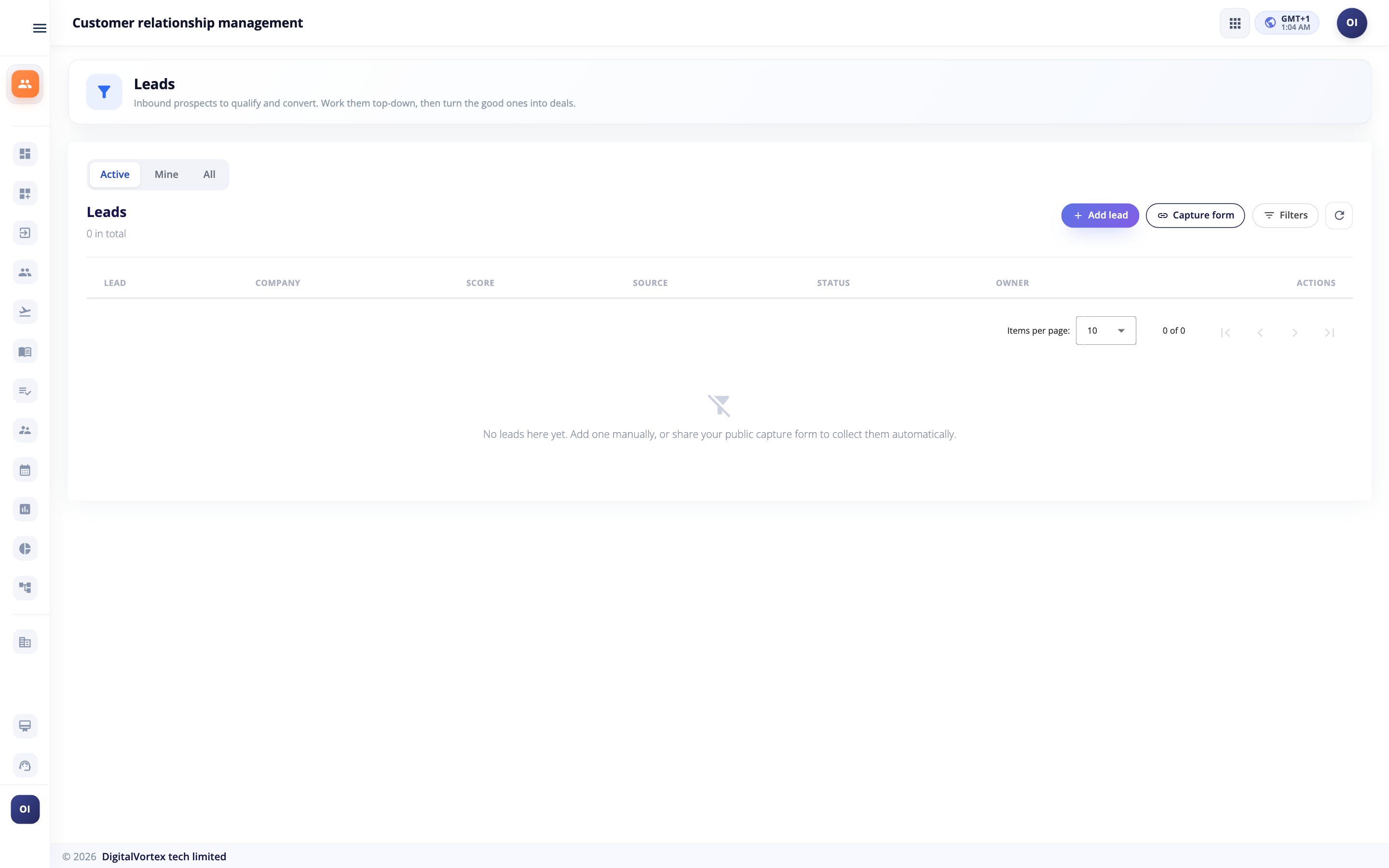
Open CRMLeads. The page says Inbound prospects to qualify and convert. Work them top down, then turn the good ones into deals.
The tabs#
- Active: leads that are New, Working or Qualified.
- Mine: leads you own.
- All: everything, including converted and unqualified leads.
What the columns mean#
- Score is a number from 0 to 100 that Hubtoll works out from how complete the lead is. It is shown in red (70 or more), amber (40 to 69) or grey (under 40). A lead with a valid email, company, phone, job title, a full name and a warm source scores high. Warm sources are Referral, Partner and Inbound.
- Status says where the lead is.
| Status | What it means |
|---|---|
| New | Came in a moment ago. Nobody has looked yet. |
| Working | Someone is following up. |
| Qualified | A real opportunity worth converting to a deal. |
| Unqualified | Not a fit. Kept for the record. |
| Converted | Turned into a contact, company and maybe a deal. Set by the system, never picked by hand. |
Add a lead#
A lead is "this person, at this company, is interested". So you pick the company and the person. You do not retype their details.
- Open CRMLeads and click Add lead.
- In Company, pick one. If it is new, choose + Add new company… first.
- In Contact, pick someone from that company. The list only shows that company's people, and says Choose a company first until you pick one. You can also choose + Add new contact….
- Their details appear below the pickers. To correct them, click Edit contact. There is one record, in one place.
- Pick a Source and a Status.
- Add Notes (optional) and click Add lead.
A lead must point at a contact that belongs to the company you picked. If you pick a mismatch, Hubtoll says "That contact doesn't belong to
Convert a lead#
- Open the lead and click Convert. You can also click Convert lead under Next Step.
- The window Convert Lead shows what will happen: Create contact… and Link / create company….
- Switch on Also open a deal if there is money involved. Then fill in the Deal name, Currency, Amount, Pipeline, Stage and Deal owner. Leave the owner empty and you own it.
- Click Convert.
What conversion does:
- It reuses the company and contact the lead already points at. It does not make a second copy.
- A company or contact still marked Lead becomes Prospect. A company already marked Customer is never moved backwards.
- If you chose a deal, it goes into the pipeline and stage you picked. A deal with no name is called New deal for
. - The lead's status becomes Converted, and it stores links to the new records.
A converted lead can no longer be edited ("A converted lead can't be edited") and cannot be converted twice ("Lead has already been converted"). If your pipeline moves in order or a stage asks for fields, the same rules apply when the deal is created. See Pipelines and deals.
Collect leads from your website#
Hubtoll gives you a ready-made form page. People type their details, and a lead appears in your list. You do not build anything.
Get the link#
- Open CRMLeads. You need CRM – configuration or CRM – editor to see the button.
- Click Capture form. Hubtoll copies the link and shows it.
- Paste the link where visitors can find it: a button on your website, an email signature, a QR code, a social bio.
The link looks like https://yourcompany.hubtoll.com/crm-lead/ followed by a long code that identifies your company. It works for anyone, with no sign-in.
What a visitor sees#
The page is headed Get in Touch: Tell us a little about yourself and we'll be right with you. It asks for:
- Your name (required)
- Email (required, and it must be a valid address)
- Phone (with the country flag control)
- Company
- Job title
- How can we help?
They click Send. They see Thank You! and We've received your details and someone will be in touch shortly. A link, Submit another response, lets them send another. The footer says Powered by Hubtoll CRM.
What happens in your CRM#
Each submission creates or reuses real records, not only a note:
- A lead with status New and source Website, with a score.
- A company, reused if one with that name already exists (case does not matter). A new one is marked lifecycle Lead.
- A contact, reused if that email is already on file. A returning person's record is never overwritten. Only blanks are filled. A new contact is marked lifecycle Lead.
- The owner is your company's workspace owner. You can reassign the lead afterwards.
- If you use automations that run when a lead is created, they run for website leads too. See Sequences and automations.
A phone number is saved in international form where Hubtoll can read it. If it cannot, it keeps what the person typed, so you do not lose an enquiry.
Protection against spam#
You do not need to do anything. The form guards itself without asking people to prove they are human:
- A hidden field that people never see traps automatic form-fillers. They get a normal "success" reply and nothing is saved.
- A name that looks machine-made is refused with Please enter your name with spaces between the words, for example "Ada Obi". Real names pass.
- The form needs at least a name, email, phone or message, so an empty submission is refused.
Set up the fields you want#
Every company wants slightly different information. In the CRM menu, open Companies, Contacts or Leads and click the Company Forge Template, Contact Forge Template or Lead Forge Template link. There you can:
- Add your own questions with Design fields.
- Choose which built-in fields are required, and rename choices such as lead Status and Source.
Publish the template. The new fields appear in Additional Information on the add and edit window and on the record page. Read Add your own fields to built-in modules for the full how-to.
Who can do what#
| Task | Needs |
|---|---|
| See your own companies, contacts and leads | A CRM seat |
| Add and edit your own records | CRM – initiator |
| See everyone's records | CRM – read-only or CRM – see every record (or the narrow grant for one kind) |
| Edit anyone's records | CRM – editor (or CRM – companies, editor / CRM – contacts, editor) |
| Convert or delete a lead you do not own | CRM – editor |
| Copy the website form link | CRM – configuration or CRM – editor |
| Design the extra fields | CRM – configuration, CRM – editor or CRM – full administrator |
The complete list is in the Permission reference.
Common questions#
I added a contact but cannot find them in the list.
Check the tab. My contacts only shows people you own. Also clear any filter. If someone else owns the record and you only hold the initiator permission, you will not see it.
Why can I not type a phone number like 08012345678?
You can. Pick the country first (it starts on your company's country), then type the number. Hubtoll saves it as +2348012345678. If it says the number is not valid, check the country and the number of digits.
Can I import a spreadsheet of contacts?
There is no import button in CRM today. Add records one at a time, or collect them with the website form.
Can two companies have the same name?
The website form reuses a company with the same name instead of making a second one. When you add a company by hand, take care to search first, because Hubtoll will not stop you from typing a name that already exists.
I deleted a lead by mistake.
Deleting asks you to confirm, and it cannot be undone from the screen. Add the lead again. The company and contact it pointed at are not deleted.
How do I email a contact from CRM?
Open the contact and click Email. You need a connected mailbox. See Email, inbox and templates.