
What a supplier record is, in plain words#
A supplier is a company you buy from. Hubtoll keeps one record for each one. The record holds their details, their contacts, their legal papers, their bank account, their risk level and a history of what you did with them.
The idea is simple. You only buy from a supplier who has been checked and approved. The checks happen once, in one place, instead of in someone's inbox.
Where suppliers live#
Open ProcurementSuppliers. The menu group opens an Overview first. It shows how many suppliers sit at each stage: Invited, Draft, Under Review and Approved. Suppliers that left the road sit to the side: Suspended Or Blocked and Rejected.
Under Needs Your Attention you will see Documents Expiring, Bank Changes Awaiting Approval and Invitations Not Completed.
Click Suppliers inside the group to open the list. It has two tabs: All Suppliers and Awaiting Me. Awaiting Me holds suppliers waiting for your approval.
A supplier is always in one of these states:
| State | What it means |
|---|---|
| Draft | Being filled in. Not sent for approval yet. |
| Invited | You sent the supplier a link to fill in their own details. |
| Submitted and Under Review | Sent for approval. People are looking at it. |
| Approved | Checked. You may buy from them. |
| Rejected | Approval was refused. It can be fixed and sent again. |
| Suspended | Paused for now, with a reason. Can be reinstated. |
| Blocked | Stopped, with a reason. Can be reinstated. |
Add a supplier#
- Open ProcurementSuppliersSuppliers and click Add Supplier.
- Type the Trading name. This is the name people use day to day.
- If the legal name is different, fill in Registered legal name.
- Fill in Tax ID (TIN) and CAC / RC registration number.
- Pick one or more Categories. At least one is needed.
- Fill in Email, Phone, Website, Address, Country and State / Province.
- Optionally pick an Ownership classification. It is used only for reporting on diversity.
- Click the save button at the bottom.
The duplicate check#
While you type, Hubtoll checks whether this supplier is already on file. It compares three things: the tax number, the registration number and the name (spelling and capital letters are ignored).
You may see:
- "Tax ID X is already on file for NAME (CODE)".
- "Registration number X is already on file for ...".
- "A supplier with a very similar name is already on file: ...".
What happens next depends on the policy setting A supplier that looks like one already on file. On Warn you see the message and can still save. On Block you cannot save, and the message ends with "Open that supplier instead of creating a second one." Your administrator sets this in Procurement Policy.
Add contacts#
A supplier needs at least one person you can write to.
- Open the supplier and go to the Contacts tab.
- Click Add Contact.
- Fill in First name, Last name, Email, Phone and Job title.
- Tick the primary box if this is the main contact.
- Save.
The primary contact gets automatic emails, such as a warning that a document is about to expire. A supplier must always keep one primary contact. If you try to remove or demote the only one, Hubtoll says: "A supplier needs a primary contact. Make another contact primary instead."
Invite a supplier to fill in their own details#
You do not have to type everything. You can send the supplier a private link and let them do it.
- Open the supplier and go to the Contacts tab.
- Click the invite icon next to a contact. A window called Invite To The Supplier Portal opens.
- Pick the Contact. They must have an email address.
- Set Link valid for (days). The start is 14 days. You can pick from 1 to 60.
- Turn Email the link on to send it for you. Leave it off if you want to send the link yourself.
- Click Create Link.
- If you did not email it, click Copy Link now.
Below the contacts you will see Portal Links. Each link shows Live, Revoked or Expired, and how many times it was opened. Use the revoke icon to cancel a link at once.
What the supplier sees#
The supplier opens the link in a browser. They do not need an account or a password. The page shows:
- Company Details: legal name, registration number, tax ID, phone, website, a tick for VAT registered, and address. They click Save Details. They can only change these while their record is Draft, Invited or Rejected. Otherwise they read: "Your details are with COMPANY for review, so they can't be changed here right now."
- Documents: a list headed "Still needed", or the line "Everything required is on file and verified." They click Upload A Document.
The supplier cannot see or change bank details through the link. If the link is old or cancelled they see "This link is no longer valid" and are asked to request a new one.
Compliance documents#
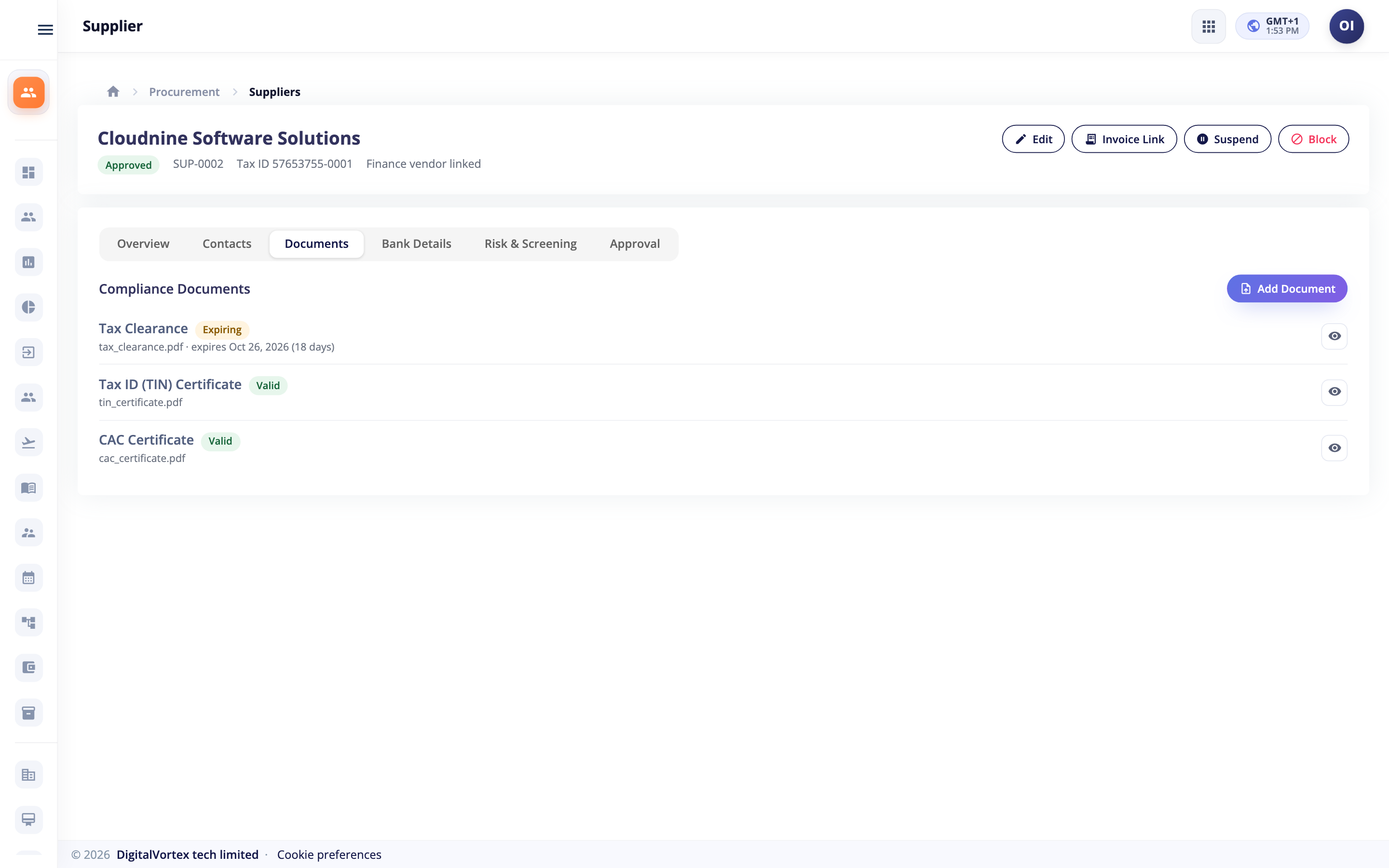
Open the supplier and go to the Documents tab. Only people who can see everything in Procurement see this tab.
- Click Add Document.
- Pick the Type. The list includes CAC Certificate, Tax ID (TIN) Certificate, VAT Registration, Tax Clearance, Insurance, ISO Certificate, Signed NDA, Bank Letter, Licence and Reference.
- Fill in the Document number, Issue date and Expiry date.
- Attach the file. It must be a PDF, PNG or JPEG, up to 10 MB.
- Save.
A buyer then checks the paper and clicks Verify, or clicks Reject and gives a reason. The supplier is told the reason. Rejecting without a reason is refused: "Say why the document is being rejected; the supplier is told".
Rules to know#
- Tax Clearance, Insurance, ISO Certificate and Licence need an expiry date. Without it Hubtoll says the paper "needs an expiry date, or it could never lapse".
- The expiry cannot come before the issue date.
- A verified document cannot be deleted: "A verified document is part of the record and cannot be deleted. Upload the newer one to replace it." This keeps the history honest.
Valid, Expiring, Expired#
Hubtoll works out the standing of each paper from its dates. You never type it.
| Chip | Meaning |
|---|---|
| Valid | In date. |
| Expiring | Ends inside the warning window. The window is set by Warn before a document expires (days), 30 to start with. |
| Expired | The date has passed. |
| Pending | Not checked yet. The supplier sees "In review". |
| Rejected | A buyer refused it. |
On the supplier page, a warning lists any required document that is missing or out of date. The reports page also has Supplier Papers Expiring Within 30 Days.
Automatic reminders and suspension#
When a paper is about to expire, or has expired, Hubtoll can email the supplier's primary contact. The subject reads like "COMPANY: your Tax Clearance expires on DATE". Each reminder is sent once. A reminder about a contract coming to an end goes to the person who created the contract.
Your administrator can also turn on Suspend a supplier when a document expires. Then an approved supplier is suspended automatically when a required paper they once had verified runs out. A supplier who never gave the paper is not touched. Hubtoll never reinstates a supplier on its own.
Bank details#
Bank details are the most dangerous thing to get wrong, because a changed account number is a classic fraud. So they have extra care.
- Open the supplier and go to the Bank Details tab.
- Click Propose Bank Details.
- Fill in Bank, Account name, Account number, Currency, Bank code and SWIFT.
- Save. The proposal goes for approval.
What else to know:
- The account number must have 6 to 34 digits. If not: "The account number does not look right".
- After saving, Hubtoll never shows the full number again. You only see the last four digits.
- Old versions are kept, marked Pending, Active or Rejected.
- Only one change can wait at a time: "A bank-detail change for this supplier is already awaiting approval. Wait for it to conclude first."
- You cannot change the bank details of a Blocked supplier.
- If another supplier already uses the same account, you see a warning: "This account number is already on file for X; two suppliers sharing one account is a classic fraud signal." Hubtoll only refuses it when the duplicate setting is on Block.
Risk and screening#
Open the Risk & Screening tab.
Risk score#
Click Assess Risk (buyers). Give a score from 0 to 100. Higher means riskier.
| Score | Level |
|---|---|
| 0 to 33 | Low |
| 34 to 66 | Medium |
| 67 to 84 | High |
| 85 and up | Critical |
You may raise the level above what the score suggests. You may not lower it: "The score implies X risk; a lower level can't be chosen". The level also sets the next review date: 12 months for Low, 6 for Medium, 3 for High and 1 for Critical.
Screening#
Screening means checking the company against lists of sanctioned people and firms, politically exposed people, and bad news. A person does the check outside Hubtoll and records the result. Hubtoll does not run the check for you.
- On the Risk & Screening tab, click Record Screening. This needs the supplier admin permission.
- Pick the Check: Sanctions, Politically Exposed Person or Adverse Media.
- Pick the Result: Clear or Hit.
- Fill in Screening source, Reference and Notes.
- Save.
A Hit needs notes: "Say what the hit was: it is the record of why this supplier was stopped". Recording a hit suspends an approved supplier at once. Approval is also blocked while the latest result of any check is a hit, until someone with the right permission records a clear result. If a supplier's category says screening is required and there is no clear sanctions result, approval is refused too.
Send a supplier for approval#
- Open the supplier. Check it has a name and at least one category.
- Click Submit For Approval.
- The approvers you designed decide, one after another. You can follow this on the Approval tab.
While a supplier waits, it cannot be edited: "This supplier is awaiting approval. It can be edited once the approval concludes or is sent back." You can only submit a supplier that is Draft, Invited or Rejected.
If nobody has designed the supplier approval chain yet, you see: "No supplier approval workflow is configured. Ask a procurement administrator to approve, or to design the workflow." Read Approvals and workflows to understand how chains work.
Suspend, block and reinstate#
On the supplier page, an administrator can:
- Suspend an approved supplier to pause buying. A reason is required: "Say why: the reason is shown wherever this supplier is refused".
- Block a supplier to stop buying completely. A suspended supplier can be blocked. A reason is required.
- Reinstate a supplier that was approved before and then suspended or blocked.
A suspended or blocked supplier cannot be picked on new requests, contracts or orders.
Supplier scorecards and reports#
Open Procurement Reports and go to the tab Supplier Scorecards. A buyer clicks Compute This Period to fill it in. Each supplier gets:
- On Time and Price Accuracy, worked out from Sales and Finance orders, receipts and bills.
- Quality and Relationship, which a buyer scores by hand.
- Overall, the plain average of the scores that exist.
Computing a period again does not erase the scores a person typed. Read more about reports in Procurement.
Who can do what#
| You want to | You need |
|---|---|
| See your own and approved suppliers | A Procurement seat |
| See every supplier, their documents and bank tab | PMS_MANAGEMENT_READONLY, or higher |
| Add and edit suppliers, invite, add documents, verify, assess risk | PMS_MANAGEMENT_EDITOR |
| Suspend, block, reinstate, record screening, adopt vendors | PMS_SUPPLIER_ADMIN |
| Change duplicate and expiry rules | PMS_SETTINGS_ADMIN |
| Design the supplier approval chain | PMS_MANAGEMENT_WORKFLOW_EDITOR |
Anyone the workflow names can approve a supplier. See Roles: give people the right access.
Common questions#
Why can I not pick this supplier on a request?
Only Approved suppliers can be picked. Open the supplier and check its state. A Suspended or Blocked supplier is refused everywhere until it is reinstated.
The supplier says their link does not work.
The link may have expired, been replaced by a newer one, or been revoked. Open the supplier, go to Contacts, check Portal Links, and create a new link.
Can a supplier see our other suppliers or our prices?
No. The link opens one page about their own company. It shows their own details and documents only.
Why can I not delete a document?
Verified documents are part of the record and are never deleted. Upload the newer paper instead. An unverified one can be deleted by a buyer.
I proposed new bank details. Why is nothing paid to that account?
Only the active account is paid. The new one stays Pending until a second person approves it.
Does Hubtoll check the sanctions lists for me?
No. A person does the check and records the result with Record Screening. Hubtoll keeps the record, and blocks approval when the result is a hit.