
How pipelines and deals work#
A deal is one sale you are trying to win. It has a name, an amount, a company and a person to talk to.
A pipeline is the road a deal travels. It is made of stages, in order. A new deal starts in the first stage. As the sale gets closer, you move the deal to the next stage. At the end it is Won (you got the sale) or Lost (you did not).
Your company starts with one pipeline, called Sales pipeline. You do not need to create it. It has six stages:
| Stage | Type | Likelihood |
|---|---|---|
| New | Open | 10% |
| Qualified | Open | 25% |
| Proposal | Open | 50% |
| Negotiation | Open | 75% |
| Won | Won | 100% |
| Lost | Lost | 0% |
Stages come in three types. Open stages are the steps a deal works through. Won and Lost close the deal.
The Deals board#
Open CRMDeals, then click Deal List in the menu to reach the board. (The first click on Deals opens the Deals Overview, which is a page of reports.)
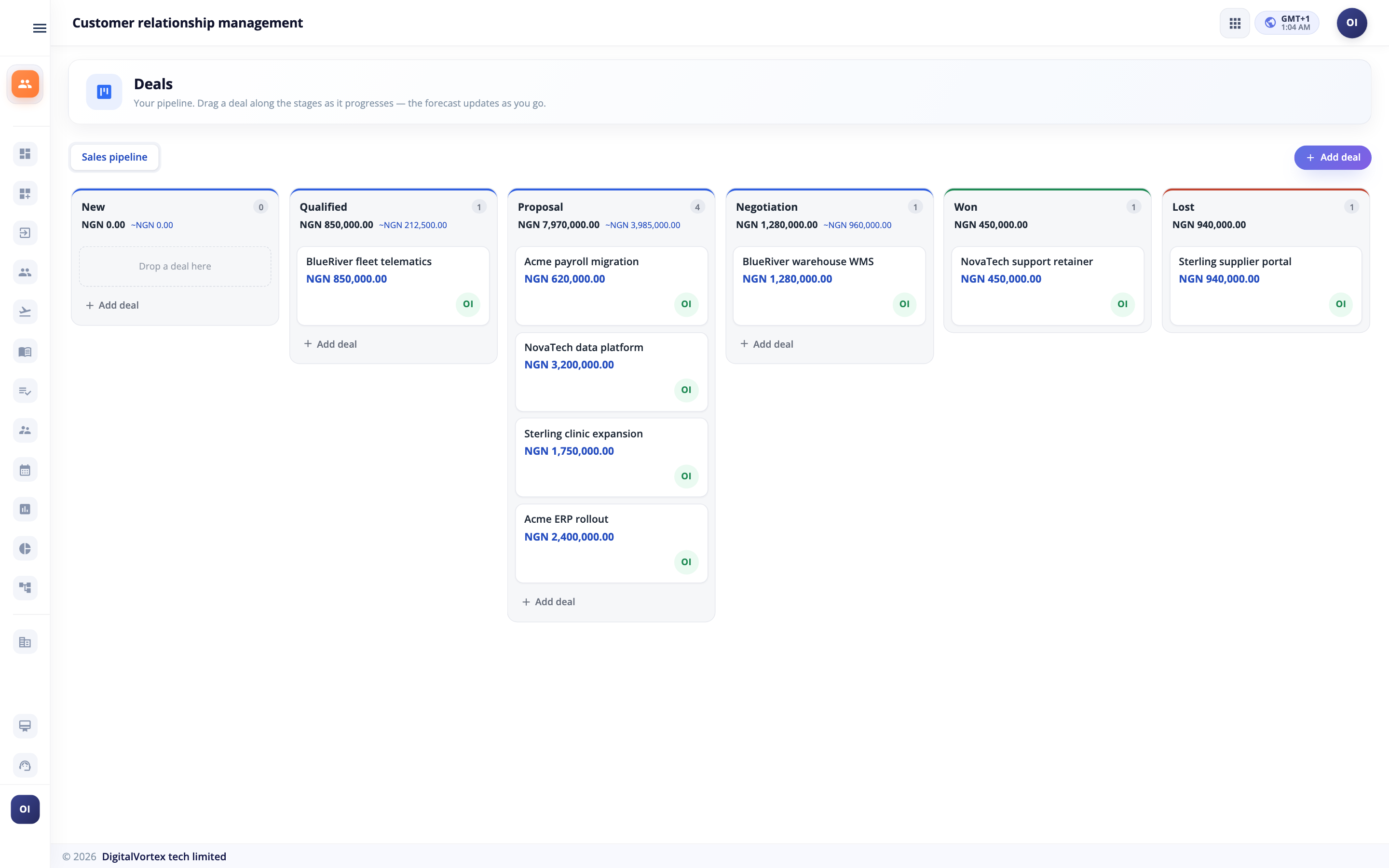
At the top you see four numbers for the pipeline you are looking at:
- Open pipeline: the combined value of deals in open stages.
- Weighted forecast: each open deal's value times its stage's likelihood.
- Open deals: how many are in open stages.
- Won this month: deals won since the 1st, with their value.
Under them there is one tab per pipeline. If you have more than one, click a tab to switch. On the right you can switch between Board view and List view.
Every column shows the stage name, how many deals are in it, a Total, and a Weighted figure for open stages. A card shows the deal name, the amount, the company, how long it has been in this stage, the expected close date and the owner's initials. The small percentage on the card is its win probability.
Move a deal#
- Press on a deal card and drag it to another column.
- Let go. The card lands in the new stage and the totals update.
You can also open a deal and click a stage in the stage bar at the top of the page. The stage bar is the row of steps across the page. Past stages are filled in. The current stage is highlighted.
When a stage will not accept a deal#
Sometimes a drop is refused. There are three reasons.
- The pipeline moves in order. A column that the deal may not enter turns dim while you drag, and hovering it shows why. For example: "This pipeline moves in order: a deal must pass through Qualified before it can be won." See Make a pipeline move in order.
- The stage needs some fields first. A window titled Required Fields for This Stage opens and asks for what is missing. Fill it in and click Save and Move (or Save and Mark Won). If you cancel, nothing changes. See Ask for fields before a stage.
- The move needs approval. The card goes back to where it was, and a message says "
was sent for approval." See Approval for deal moves.
The deal list#
Click List view (the lines icon) to see deals in a table. It has three tabs: All deals, My deals and Awaiting me. The last one shows deal moves waiting for you to approve. A Filters button narrows the list by name, amount, stage, owner and more.
Add a deal#
- Open the Deals board and click Add deal. Or click Add deal at the foot of a column to start the deal in that stage.
- Type the Deal name, for example Acme: annual plan.
- Pick a Currency and type the Amount. The currency symbol shows inside the box.
- Pick the Pipeline and the Stage.
- Pick an Expected close date if you know it.
- Pick the Company and the Primary contact. You can add a new one right from the list: choose + Add new company… or + Add new contact… at the top.
- Choose a Source, such as Website, Referral, Outbound, Inbound, Event or Partner.
- Choose the Deal owner. Leave it empty and you are the owner.
- Add Notes (optional), then fill in anything under Additional Information.
- Click Add deal.
Which fields are asked, and which are required, is set by your administrator. See Set up the deal form.
Currency and exchange rate#
A deal can be in any currency on your Sales and Finance currency list. The first choice is your company's own (ledger) currency.
If you pick a different currency, a box appears: Exchange rate for this deal, written like 1 USD = ? NGN. It starts filled with the company's active rate. A line under it says how the deal will be counted, for example Counted in totals at 1 USD = 1,550 NGN.
- Leave the rate alone and the deal follows the company's active rate in Sales and Finance.
- Type your own rate and the deal is counted at that rate. A line then reads Counted in totals at this deal's own rate…, and also shows the active rate for comparison.
- A small preview shows the converted figure, like USD 1,000.00 ≈ NGN 1,550,000.00.
Totals are always worked out per currency, then converted at the active rate. Hubtoll never adds naira and dollars as if they were the same. A deal in a currency with no rate is left out of the totals, and the page tells you. An orange note appears: "2 deals are not in these totals. They are in GBP and no NGN rate is set for them yet." It links to the rates page, or tells you to ask your finance admin. Learn about rates in Currencies and exchange rates.
Work a deal#
Click a card, or a row in the list, to open the deal page.
- The top shows the amount, the status, the company, the owner, and (for a foreign currency) a chip with the rate used.
- Deal age is days since the deal was created. In current stage is days since it entered this stage. Open tasks and Emails are counts.
- Details lists value, weighted value, pipeline, stage, expected close, company, primary contact, source and owner.
- Emails shows email logged against the deal. If you have a mailbox connected, the Email button writes to the primary contact. See Email, inbox and templates.
- Activity is where you log a task, call, meeting or note.
- Your own fields appear under Additional Information.
If a deal is open and has no task, an orange box says No next step scheduled: Log a task so this deal doesn't stall. Click Log a task.
Flag deals that go quiet#
A card shows a small flame if the deal has sat in a stage too long. Hovering it says No progress in 21 days. How long is "too long" is set per stage under Flag as idle after (days). See Add or change a stage.
Win or lose a deal#
On the deal page:
- Click Mark won when you get the sale. The deal moves to the Won stage and counts under Won this month.
- Click Lost when it falls through. A window asks for a Lost reason (optional), for example Price too high, chose a competitor. Writing one helps your win and loss reports. Click Mark lost.
A lost deal is not gone. The window reminds you: You can reopen it later by moving it back to an open stage.
Turn a won deal into an invoice#
A won deal shows a Billing card on its page.
- Open the won deal.
- In Billing, click Create invoice. The text says: One click creates the customer (if needed) and the invoice, then tracks payment here.
- Wait a moment. The card now shows the Invoice number, its Status and the Balance due.
- Click the invoice number to open it in Sales and Finance.
What happens behind the click:
- The company becomes a Sales and Finance customer, or is linked to a customer with the same name.
- A draft invoice is made with one line: the deal name, quantity 1, price = the deal amount, in the deal's currency. The due date is 30 days away.
- The deal owner is recorded as the invoice's sales agent.
- If you negotiated a rate on the deal, the invoice uses it.
The invoice is a draft. Nothing is posted to your books and nobody is billed until someone reviews and issues it in Sales and Finance. See Sell: customers, quotes, invoices and payments.
Where the money is recorded is set in Sales and FinanceFinance SettingsCRM Defaults. If nothing is chosen, the first income account is used.
Approval for deal moves#
Some companies want a manager to approve certain moves, for example winning a deal over ₦5,000,000. That is what the Deal Forge Workflow does.
A fresh workspace has no deal workflow, so every move is instant. Once one is active:
- Drag a card and a note says "
was sent for approval. It moves to The card snaps back.once the deal workflow approves it." - On the deal page, Mark won shows Sent for approval. The deal moves to Won once the deal workflow approves it.
- A card shows Move awaiting approval, with an arrow from the old stage to the new one. In the target column a ghost card says Incoming · pending approval.
- While a move waits, the deal is frozen. You cannot edit or move it again until the move is decided or withdrawn. If you try, you see "This deal is waiting for approval to move to
. It can't be moved again until that is decided or withdrawn."
A rule in the workflow can wave small moves through on the spot. Only the moves the company cares about wait.
Approve or decline a move#
- Open CRMDeals and look for Awaiting my approval with a number. Click it. Or open List view and the Awaiting me tab.
- Click a deal. Its row says Pending move to the new stage, with needs you beside it.
- On the deal page, find the move card at the bottom. It shows from stage → to stage and who asked.
- Choose Approve, Reject or Send back. Rejecting or sending back needs a written reason.
You do not need a CRM permission to approve. The workflow decides who may act.
Withdraw a move#
On the deal page, click Withdraw on the move card. Only the person who asked, the deal's owner, or someone with a CRM editor role can do this.
Build the workflow#
Open CRMDealsDeal Forge Workflow. You need CRM – Deal workflow editor. Everyone with CRM – Deal workflow read-only can look but not change. The same drawing board is used for every module. You can branch on the deal's amount, stage, owner, whether the move is forward, and your own deal fields. See Forge: approval workflows and emails.
Set up pipelines and stages#
This section is for administrators. Open CRMCRM SettingsPipelines & Stages. Anyone with CRM can see this page. Changing it needs CRM – configuration or CRM – editor. Others see a note: You can see how your company's pipelines are set up.
A faster way in: on the Deals board click New Pipeline or the tune icon (Manage pipelines and stages).
Add a pipeline#
- Click New Pipeline.
- Type a Pipeline name, up to 100 characters, for example Enterprise sales.
- Pick Stage progression (see below).
- Click Create Pipeline.
Each pipeline card shows a Default badge if it is the default (new deals and converted leads go into the default pipeline unless someone picks another), a rule chip, and counts like 6 stages · 4 open · 2 closed. Use Make Default to change it, the pencil to edit the pipeline, and the bin to delete it.
Add or change a stage#
- On a pipeline card click Add Stage. To change one, click the pencil beside it.
- Type the Stage name, for example Demo booked.
- Choose the Type: Open, Won or Lost.
- Set Likelihood to close (%), 0 to 100. A new open stage starts at 50%.
- For an open stage, set Flag as idle after (days). A new open stage starts at 14. Leave it empty to never flag.
- Click Add Stage or Save Changes.
A new open stage joins after the last open stage. Drag the handle (the six dots) to reorder open stages. The order is saved at once.
Won and Lost always stay last. Their handles show a lock. New deals start in the first stage, so Hubtoll keeps all open stages before the closed ones.
Why a delete is switched off#
A bin that is greyed out tells you why when you hover it.
| You hover | Because |
|---|---|
| Deals are in this pipeline. Move or delete them first | The pipeline holds deals. |
| Your only pipeline. Add another before deleting this one | You always need one pipeline. |
| Deals are in this stage, or waiting to move into it. Move them first | The stage holds deals, or a move into it is waiting for approval. |
| A pipeline keeps at least one open stage (or won, or lost) | Every pipeline needs one of each type. |
A stage or pipeline in use also shows an In use tag. You also cannot change a stage's type while deals are in it, and a warning in the window explains it.
Make a pipeline move in order#
By default a pipeline uses Free movement: any deal can go to any stage at any time. To make people follow your process, edit the pipeline and set Stage progression to Moves in order.
Then:
- In the pipeline window, switch on or off Allow moving a deal back. Switched off, a deal can only go forward. Marking a deal lost is always allowed.
- For each step every deal must pass through, edit the stage and switch on Required stage.
Now a deal cannot skip a required stage, and it cannot be won until it has passed through all of them. The card shows a Required tag, and the pipeline shows a Moves in order chip. Hover it for a summary such as 1 required stage cannot be skipped · moving a deal back is allowed.
The same rule is checked everywhere a move is offered: the board, the stage bar, Mark won, the deal form's stage list, and the lead convert window. The stage list on the deal form only shows stages the deal can reach, with a note saying why the others are hidden. The server also refuses a skipped move with a message such as "This pipeline moves in order. A deal can't go back to Qualified."
Ask for fields before a stage#
You can insist that certain fields are filled in before a deal enters a stage. For example, a deal cannot reach Negotiation without an expected close date, or a deal cannot be Won without the contract term.
- Edit the stage.
- Open Fields required to enter this stage and pick fields. You can choose built-in deal fields and your own published custom fields (shown with (custom)).
- Save. The stage card shows a tag such as Needs 2 fields.
From then on, any move into that stage asks for what is missing: a drag, the stage bar, Mark won, a deal created straight into that stage, and a lead converted into it. The deal form tells you early: "Negotiation asks for Expected close date before a deal enters it. Fill it in here."
If the server still finds something blank it says: "Fill in Expected close date before moving this deal to Negotiation."
A Lost stage can never ask for fields, so losing a deal never needs paperwork. A stage can ask for at most 20 fields.
Set up the deal form#
Open CRMDealsDeal Forge Template. Click Design fields to add your own questions, such as Contract length or Solution, and to choose which built-in deal fields are required. Publish it and the new fields appear on the deal window and the deal page. Read Add your own fields to built-in modules.
Who can do what#
| Task | Needs |
|---|---|
| See your own deals | A CRM seat |
| Add and move deals you own | CRM – initiator |
| See every deal | CRM – read-only, CRM – see every record or CRM – deals, read-only |
| Edit, move, win, lose or invoice any deal | CRM – editor or CRM – deals, editor |
| Create pipelines, change stages | CRM – configuration or CRM – editor |
| Design the Deal Forge Workflow | CRM – Deal workflow editor |
| Approve a deal move | Nothing: the workflow names the approver |
| Create an invoice from a won deal | The edit right above, plus a Sales and Finance seat |
Common questions#
I dragged a card and it jumped back.
Either the move needs approval (look for the blue note under the toolbar), or the pipeline refused it. Hover a dimmed column to read why.
Why do two columns show different currencies?
Column totals are always shown in your company currency. Each card shows its own deal currency. Totals convert every deal at its own rate, or the active rate.
A deal is missing from the totals.
Its currency probably has no exchange rate. Look for the orange note that says the deal is not in these totals, and set the rate under Sales and Finance › Finance Settings › Exchange Rates.
Can I edit a deal that is waiting for approval?
No. The deal is frozen so the person approving sees the same facts you sent. Click Withdraw on the move card, edit the deal, and move it again. If the move was sent back to you, the move card offers Revise, which opens the edit window.
How do I see deals older than a stage's idle limit?
Look for the flame on the card. For a report across all deals, build one in CRM reports and dashboards.