
The big picture#
Hubtoll looks the same on every page. Once you know five places, you can find anything:
- The left menu (where you go).
- The top bar (who and where you are, and a way to switch products).
- The trail of links above the page (breadcrumb).
- The page itself, often a list.
- Pop-up windows (where you add or edit things).
Products: the grid icon#
Hubtoll is made of several products, such as Human Resources, Sales and Finance, Customer Relationship Management, document management and Forge. You only see the ones your company uses and that you are allowed into.
To jump between them, click the small grid icon at the top right. Its tooltip says Switch products. A panel opens called Your Products, with the line "Jump between your HUBTOLL modules". The product you are in has a Current badge. Click another to go there.
The left menu#
The left menu changes with the product you are in.
On a big screen it starts as a narrow strip of icons. Move your mouse onto it and it opens to show the names. Move away and it shrinks again. The three-line button at its top pins it open or shrinks it for good.
From the top, the menu shows:
- The product's dashboard, named after the product, for example "HRM dashboard".
- Active module, a small label that tells you which product is open.
- Menu, the list of modules in this product. A module with a small arrow opens to show its pages. For example, under Human Resources you open Leave to see its pages.
- Settings (shown only to people who may use it): Corporate management, Subscription management and Support.
- At the very bottom, a card with your name and a logout icon.
The top bar#
Across the top of every page you will find, from left to right:
- The page title, so you always know where you are.
- The grid icon for switching products (see above).
- The Setup chip, for the workspace owner only. It shows how much of your company setup is done, for example Setup 78%, and the next step. Click it to open the checklist.
- The timezone chip, which shows your company's timezone and the local time, for example GMT+1 and 2:02 PM. It tells everyone which time zone the dates and times on screen use. (This chip and the Setup chip are hidden on small phone screens.)
- Your avatar, a round picture or your initials.
Your avatar menu#
Click your avatar to open a small menu with:
- Your name and email.
- Switch workspace, only if you belong to more than one company. Click a company to move to it.
- Security, for your own two-factor sign-in, passkeys and password. See Two-factor sign-in and passkeys.
- Support, to ask Hubtoll for help. See Contact support.
- Logout.
Your photo and details are in Your profile, photo and password.
The trail of links (breadcrumb)#
Right above each page there is a row that starts with a small house icon, then arrows and names, for example Human Resources › Leave. It shows where you are. Click any earlier name to go back up one level. The last name is the page you are on and is not a link.
The dashboard#
The dashboard is your home page. Click the product logo at the top of the menu, or the house in the breadcrumb, to get back to it.
From top to bottom:
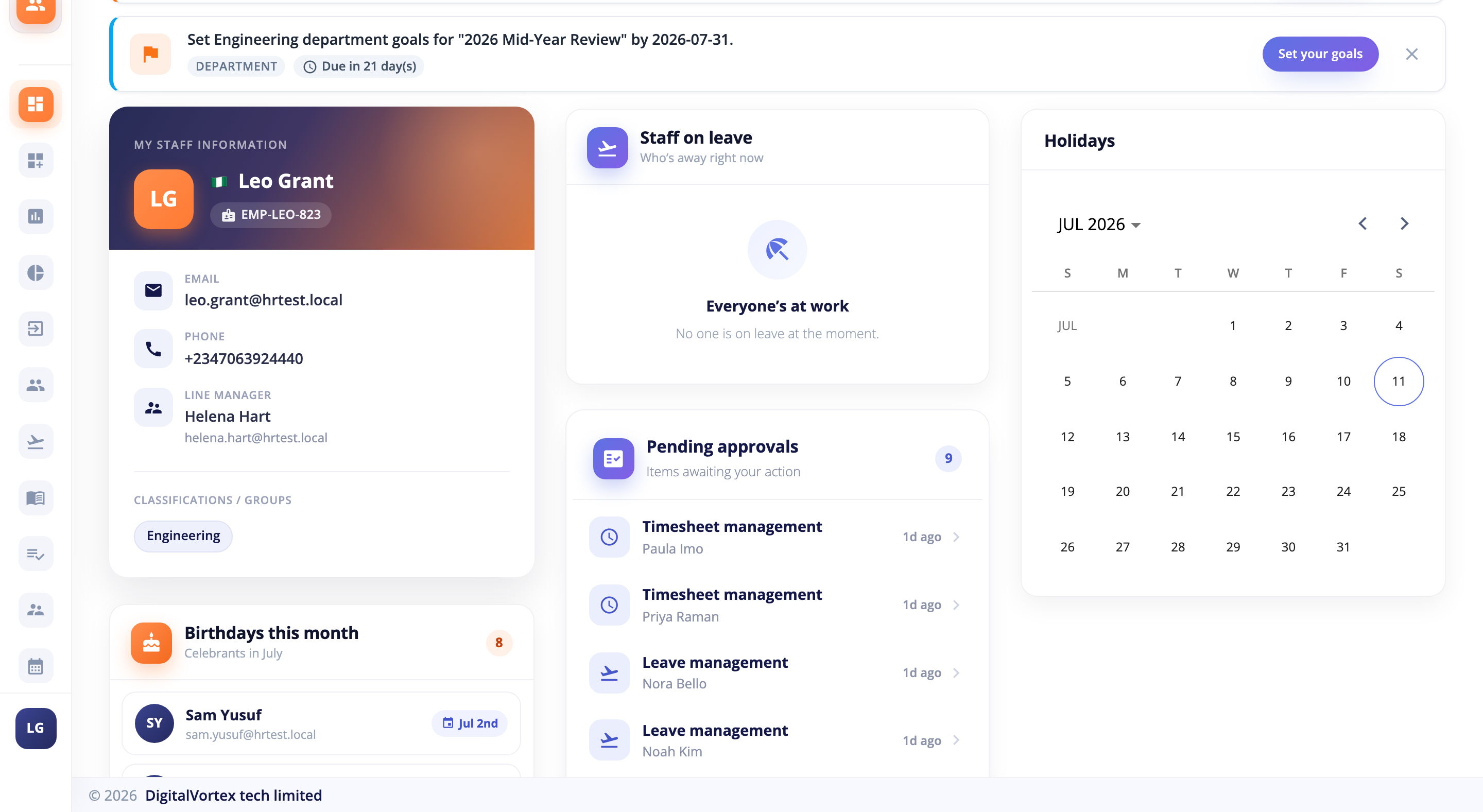
- A welcome banner with a greeting, your name, today's date, a Quick tour button, and your company's logo and name.
- Workspace Setup, for the owner. See Create your account and set up your company.
- Forge, a banner for building your own forms and processes.
- My staff information: your own details, line manager and departments.
- Birthdays This Month, Staff on Leave and Holidays: who has a birthday, who is away right now (and who covers for them), and a calendar with colours for each country's public holidays.
- Pending Approvals: things waiting for you to decide, such as a leave request or an invoice. Each row says what it is and who raised it. Click a row to open it and decide. When you have none, it says You’re All Caught Up.
Lists#
Most pages are lists: leave requests, employees, invoices, deals. They all work the same way.
- Look at the rows. Each row is one record.
- Click anywhere on a row to open it. You do not need a special "view" button. Links inside a row, such as a person's name, still go where they say.
- Use the small icons at the end of a row for quick actions. Hover to see what each one does, for example Delete or Switch off.
- Use the buttons above the list. The main button, such as Add holiday, makes a new record. The round arrow refreshes the list.
Narrow the list with Filters#
Click Filters. A panel opens. A number on the button shows how many conditions are active.
- Click Add condition.
- Pick a field (for example "Status"), then how to compare (for example is), then a value.
- Add more conditions if you like. When you have two or more, a button between them says And or Or. Click it to switch.
- And means a row must match every condition.
- Or means a row can match any one of them.
- To group conditions together, click Add group.
- To start over, click Clear all.
On a phone, the filter opens as a sheet from the bottom. You press Apply to use your changes or Cancel to throw them away.
Tabs and the "Awaiting you" badge#
Many lists have tabs such as All and Awaiting me. Awaiting me shows only the records waiting for your decision. A small Awaiting you badge on a row means the same.
Pages of results#
At the bottom of a long list you can move between pages with the arrows, and on a computer choose how many rows to see per page (10, 20 or 30). The web address of the page remembers where you were, so the back button of your browser works as you expect.
Pop-up windows#
When you add or edit something, a pop-up window opens over the page. It has a coloured header with a title and an X at the top right.
- Click the X, press Esc, or click outside the window to close it.
- The window's main button, at the bottom, saves your work. It shows a small spinner while it saves.
Drafts: your typing is kept#
You will not lose half-finished work. Hubtoll saves what you type in most forms by itself, a couple of seconds after you stop typing.
- If you close the window before saving, a small Draft saved notice appears.
- The next time you open that form, a banner says You have an unsaved draft. Click Restore to carry on, or Discard to start fresh.
- If someone else changed the same record after you made the draft, Hubtoll warns you: "This was changed by someone else after your draft was saved. Restoring replaces their version with yours."
- Drafts are private. Only you can see yours. They are removed after 30 days of not being touched.
- If your internet was down and the draft could not reach Hubtoll, a copy is kept on your device and offered next time. You will see Close and keep a copy? when you close.
Some small windows do not keep drafts. If you close one after typing, Hubtoll asks Discard your changes? You can pick Keep editing. Forms where money moves, such as recording a payment, never keep drafts, on purpose.
Messages you will see#
- A green message at the top after you save something. It repeats Hubtoll's own words, for example "Successfully created". Lists you only look at do not show one.
- A red message when something is wrong. It says what, in plain words. If a window stays open, fix the field and try again.
- A thin bar across the very top of the page while something loads. It is a gentle hint that Hubtoll is working. A bigger "please wait" cover appears only for slow actions.
- Loading… inside a list means the rows are on their way. A list never claims "nothing here" while it is still loading.
Staying signed in, and being signed out#
For your safety, Hubtoll signs you out if you stop using it for an hour.
- About 5 minutes before that, a window called Still There? appears with a countdown. Click I’m still here to carry on, or Sign out.
- After a very long day, a sign-in also has a maximum length (about 24 hours). Before it ends you see Please Save Your Work. Save what you are doing, then click Sign in again. Hubtoll brings you back to the same page.
If you are signed out, sign in again. Your drafts are still there.
When your internet drops#
If your connection is lost, a banner at the top says You're offline. Check your internet connection. We'll reconnect automatically. Keep your page open. When the connection returns, the banner goes away and you can carry on.
If Hubtoll itself cannot be reached for a moment, you will see a short message that says it is usually temporary. Wait a few seconds and try again.
Using Hubtoll on a phone#
You can use Hubtoll in the web browser of your phone. The pages rearrange themselves to fit.
- The left menu hides behind a three-line button at the top left. Tap it to open the menu.
- Tables turn into cards. Each row becomes a small card with its main facts. Tap a card to open it.
- A row of tabs shows the current tab and the one with a number on it. The rest wait behind a three-dot button.
- Filters open as a sheet from the bottom.
- Pop-up windows nearly fill the screen.
- The Setup chip and the timezone chip are hidden. The same information is on your dashboard.
Common questions#
Where did a menu item go?
Menus follow your role. If you cannot see an item, you probably do not have permission. Ask your workspace admin. See Roles: give people the right access.
I cannot find the page I want.
Check which product is open (the grid icon shows Current). The left menu belongs to that product. Switch products and look again.
How do I get back to my dashboard?
Click the house icon in the breadcrumb, or the logo at the top of the left menu.
I lost something I was typing.
Open the same form again. If a draft was kept, the You have an unsaved draft banner appears. Click Restore.
Why am I asked to leave the page?
Your browser may say "Leave site?" when you try to close the tab with work that has not been saved anywhere. Stay, save, and then leave.
Can I change the language?
Hubtoll's screens are in English today.