
What a CRM is#
CRM stands for customer relationship management. That is a long name for a simple idea.
Think of two things you already know. One is an address book that your whole team shares, so nobody keeps customers only in their head or their phone. The other is a to-do list that says who to call next and what is still open.
Hubtoll CRM is both. It also adds a sales board, where each chance to make a sale is a card that you drag from left to right as it gets closer to a yes. When a deal is won, one click starts the invoice in Sales and Finance.
The five things in CRM#
Everything in CRM is one of five kinds of record. They link to each other, so you can always jump from one to the next.
| Record | What it is | Example |
|---|---|---|
| Company | An organisation you do business with | Halo Telecom Services |
| Contact | A person, usually at a company | Samuel Adeniyi, the finance officer at Halo |
| Deal | One sale you are trying to win, with an amount and a stage | "Halo Telecom: enterprise ERP", ₦45,000,000 |
| Lead | An enquiry that is not a customer yet | Someone who filled in the form on your website |
| Task (also called an activity) | A thing to do or a thing that happened: a task, call, meeting, note or email | "Call Samuel on Friday" |
Here is how they connect:
- A company has many contacts and many deals.
- A deal has one company and one main contact.
- A lead points at a company and a contact too. When the lead is good, you convert it, and it becomes a real contact, company and (if you want) a deal.
- Tasks hang off a deal, a contact or a company, so a record always shows what is planned and what already happened.
You do the work in these pages. Each one has its own guide:
- Pipelines and deals: the board, stages, winning and losing, invoicing a won deal.
- Contacts, companies and leads: the address book, the website form and converting leads.
- Email, inbox and templates: connect a mailbox and see every conversation on the contact.
- Sequences and automations: follow-ups that send themselves.
- CRM reports and dashboards: questions about your sales, answered with charts.
Where everything lives#
Switch to CRM with the product switcher at the top right (the small grid of squares). The left menu then shows:
| Menu item | What it is for |
|---|---|
| CRM dashboard (the first item) | Your pipeline at a glance. |
| Deals | The sales board and the deal list. |
| Contacts | The people you sell to. |
| Communications | Email conversations. See Email, inbox and templates. |
| Companies | The organisations you sell to. |
| Tasks | Everything on your plate. |
| CRM Settings | Pipelines, mailboxes and other setup. |
| Leads | Enquiries to qualify and convert. |
| Reports | Pipeline reports, custom reports and dashboards. |
| Email Templates, Sequences, Automations | Email that saves you typing. |
Deals, Contacts and Companies each open a small menu. The first link is the list of records. The next links are the Forge Template for that record (and, for Deals, the Deal Forge Workflow). You will meet those in the setup section.
The CRM dashboard#
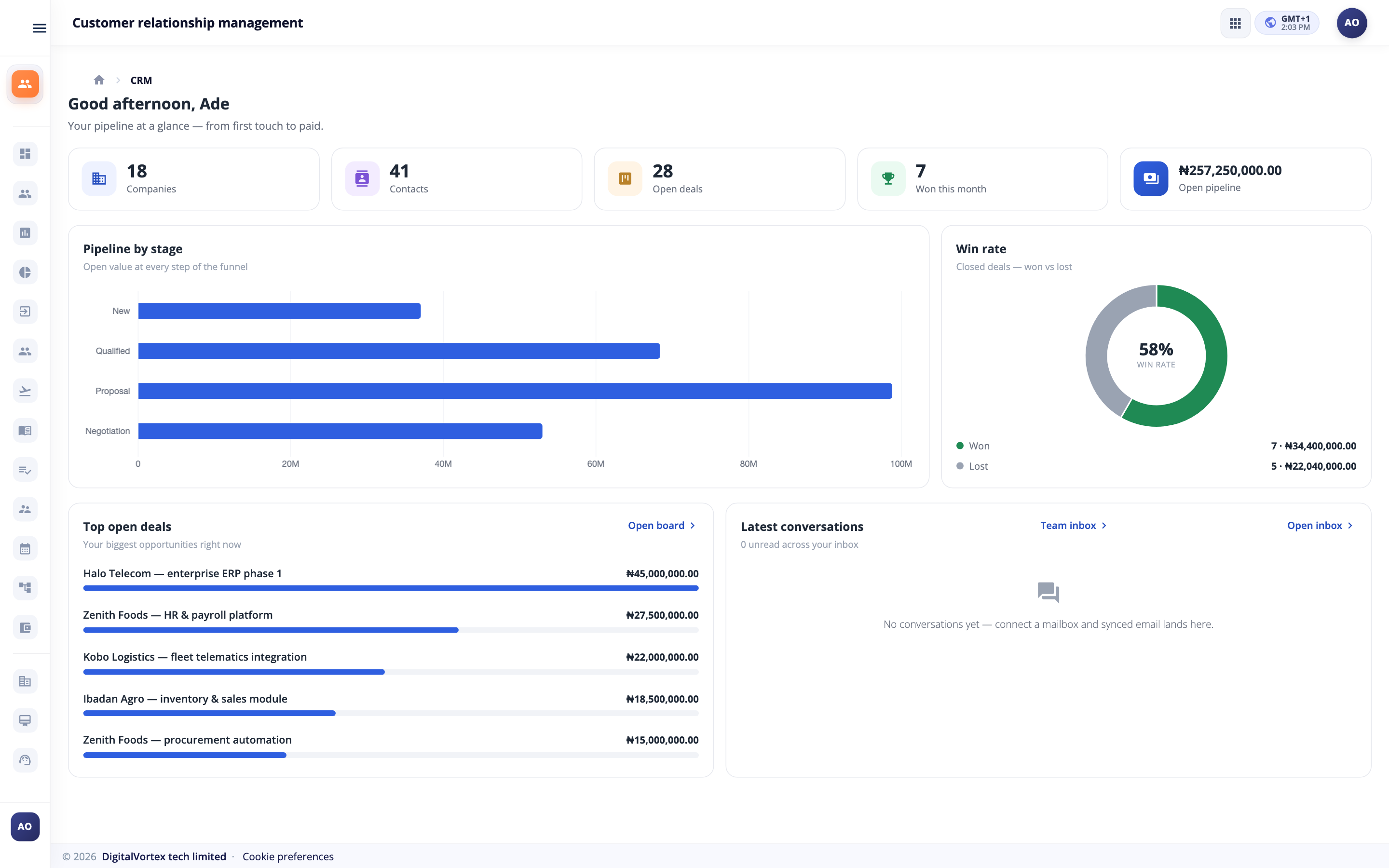
Open CRM dashboard. The top row shows five tiles. Each tile is a link to its list.
- Companies and Contacts: how many you can see.
- Open deals: deals still being worked.
- Won this month: deals closed as won since the 1st.
- Open pipeline: the combined value of all open deals.
Below the tiles you will find Pipeline by Stage (a bar for each stage), Win Rate (won against lost), Top Open Deals, and Latest Conversations from your inbox. At the bottom is Your Reports. You can pin reports there. Your arrangement is yours alone. See CRM reports and dashboards.
Every number covers only the records you can see. A new rep sees their own work. A manager sees the whole team's.
The Overview page for each record type#
Click Deals, Contacts or Companies in the menu and you land on an Overview first (for example Deals Overview). It shows the reports about that kind of record. The list itself is one click away: use Deal List, Contact List or Company List in the same menu group.
A report built over deals appears on the Deals Overview by itself. You can drag cards, resize them, or switch one off with the Hide from this overview icon. This layout is yours alone. If the page is empty, Build a Report and Open Deals buttons help you get going.
Tasks: your to-do list#
Open Tasks. You see two tabs: Open and Completed. Open tasks are grouped under Overdue, Today, Upcoming and No due date, so the urgent ones come first.
Add a task#
- Open CRMTasks and click Add task.
- In What needs doing?, type the task. Up to 255 characters. For example: Follow up on the proposal.
- Pick a Due date (optional) if there is one.
- Click Add task.
You can also log a task, call, meeting or note straight from a deal, contact or company. Open the record and use the Activity box. Pick the type with the small icons, type what happened, then click the plus button. For a call you can add how many minutes it lasted and the outcome: Connected, No answer, Voicemail or Busy. A task you log this way stays linked to that record, and you will also see it in Tasks.
Who can see and do what#
CRM never has a "everyone sees everything" setting. What a person sees depends on the roles they hold. A role is a named bundle of permissions. See Roles: give people the right access.
What a person sees#
- Someone with a CRM seat and no CRM permission can open CRM and sees only records they created or own.
- A rep with the initiator permission (CRM – initiator) can add and manage the companies, contacts, deals and leads they own. They do not see a colleague's records.
- A reader or an editor (CRM – read-only, CRM – editor, CRM – see every record) sees the whole company's records. The editor can also change them.
- Narrower grants exist for one kind of record only, for example CRM – deals, read-only or CRM – contacts, editor. Use them when a role should see every deal but not every contact.
The permissions at a glance#
| Permission | In plain words |
|---|---|
| CRM – read-only | See everything in CRM. Change nothing. |
| CRM – initiator (a rep's own book) | Work your own records. |
| CRM – see every record | Widen a rep's list to the whole company. Read only. |
| CRM – editor | Create and edit any CRM record. Move deals, win and lose them, convert leads. |
| CRM – configuration | Set up pipelines and stages, record forms, email templates, automations and mailboxes. |
| CRM – Deal workflow editor and CRM – Deal workflow read-only | Design, or only look at, the approval steps for deal moves. |
| CRM – full administrator | Everything above in one grant, plus running the CRM roles. |
The full list, with the narrower per-record grants, is in the Permission reference.
Manage CRM access without leaving CRM#
Someone with CRM – full administrator (or a roles administrator) sees a small key icon next to Add deal, Add contact and Add company. Hover it to read Manage CRM access: who is in which CRM role.
- Click the key icon. The CRM Access window opens, with the subtitle Who can see and do what in CRM.
- You see your CRM roles. Each card shows how many people and departments hold it, and what it lets them do.
- Click a role to see its members. Click Add members to give it people. You can add whole departments too.
- To make a new role, click New role. Give it a name and a short description, tick what its people may do in CRM, and click Create and add members.
Set up CRM for your company#
This part is for the person who configures CRM. You need CRM – configuration, CRM – editor or CRM – full administrator. Everyone else can look at these pages but cannot change them.
Pipelines and stages#
Open CRMCRM SettingsPipelines & Stages. A first pipeline called Sales pipeline already exists, with the stages New, Qualified, Proposal, Negotiation, Won and Lost. Nobody has to create it. Add your own, rename stages, and set the rules. The whole page is explained in Pipelines and deals.
Record forms (Forge Templates)#
Every company has its own questions. Under Deals, Contacts, Companies and Leads you will find a menu link called Deal Forge Template, Contact Forge Template, Company Forge Template and Lead Forge Template.
Open one, click Design fields, and add the extra questions you want on every record of that kind, with no code. Mark which built-in fields are required. Publish it. The new fields then appear in an Additional Information section on the add and edit window, and on the record page. Read more in Add your own fields to built-in modules.
Deal Forge Workflow#
Under Deals there is a Deal Forge Workflow link. When you switch one on, moving a deal between stages can become a request that a person approves. A fresh workspace has none, so moves are instant. Details are in Pipelines and deals.
Mailboxes and channels#
Under CRMCRM Settings you also find Email & Mailboxes, Connected Channels and WhatsApp Templates. Each person connects their own mailbox so email shows on contacts. These are covered in Email, inbox and templates.
Which account a won deal's invoice uses#
When a deal is won you can raise an invoice from it. Where the money is recorded is set in Sales and FinanceFinance SettingsCRM Defaults. If you leave it empty, Hubtoll picks the first income account on your chart of accounts, so nothing is ever blocked. See Sell: customers, quotes, invoices and payments.
Your first hour in CRM#
Work down this list. Each step is small.
- Check the seat. Make sure you and your team hold a CRM seat. See Seats, plans and subscriptions.
- Give people access. Use the key icon to make a role such as Sales team (CRM – initiator) and add your reps. Make one person a full administrator.
- Look at the pipeline. Open CRMCRM SettingsPipelines & Stages. Rename stages to match how you really sell. Set Likelihood to close on each.
- Check your currency. If you sell in more than one currency, see Currencies and exchange rates so deal totals add up.
- Add a company and a contact. Use Add company then Add contact. See Contacts, companies and leads.
- Add your first deal. Open Deals and click Add deal, or Add your first deal on an empty board. Drag it one stage along.
- Log a task. Open Tasks, click Add task, and set a due date.
- Connect your mailbox. Open CRMCRM SettingsEmail & Mailboxes. See Email, inbox and templates.
- Put the website form on your site. Open Leads and click Capture form. See Contacts, companies and leads.
- Pin a report. Open Reports and try one. See CRM reports and dashboards.
Common questions#
I cannot see a colleague's deals. Is something wrong?
No. By default a person sees records they created or own. To see the whole company's records, they need a read tier such as CRM – read-only or CRM – see every record. Add it to a role using the key icon, or ask your administrator. See Who can see and do what.
I do not see the key icon.
Only holders of CRM – full administrator, or a workspace roles administrator, see it. If you need it, ask an administrator to give you that permission.
A button I expect is missing, like Add deal.
Adding needs at least the initiator permission and a live CRM seat. If your seat has lapsed, a yellow bar shows at the top and every add or edit button is hidden.
Does CRM work without Sales and Finance?
Yes. Everything in CRM works on its own. The only thing that needs Sales and Finance is turning a won deal into an invoice. See Pipelines and deals.
What can I rename in the lists, like lead status and source?
Your company can change the wording of some built-in choices, such as lead Status and Source, in the Forge Template for that record. The lists and pages then show your words. See Add your own fields to built-in modules.
Where do I connect WhatsApp, SMS or Instagram?
Under CRMCRM SettingsConnected Channels. These are covered in Email, inbox and templates.