
The big picture#
This guide is about the last part of buying: the invoice. A supplier delivers, then sends a bill. Before you pay it, you want to know three things: did we order this, did we get it, and is the price right?
Hubtoll answers those questions for you, in two steps.
- Suppliers send invoices through a private page. No account is needed. You review each one.
- Sales and Finance checks every bill against the purchase order and the delivery. If something does not fit, the bill is held and a person decides.
Where everything lives#
In Procurement, the left menu shows these pages for this guide:
| Page | What it is for |
|---|---|
| Supplier Invoices | Invoices that suppliers sent through their link. You accept or return each one. |
| Match Exceptions | Bills that Finance refused to post. You decide each one. |
| Procurement Reports | Spending, savings and supplier scorecards. |
| Procurement Settings › Match Tolerances | How much a bill may differ before it is held. |
The first two pages need the Procurement editor permission. Reports need Procurement read access.
Let a supplier send you an invoice#
- Open ProcurementSuppliers and click the supplier. It must be approved, and it must already have a Finance vendor (Hubtoll makes one when you approve the supplier and Procurement is connected).
- Click Invoice Link.
- Read the message, then click Send Link.
- The link is personal to that supplier. It works for 90 days.
- Sending a new link cancels the old one. The message warns you: Any invoice link sent before stops working.
- If you see ... has no Finance vendor yet, so it has no orders to bill, the supplier is not linked to Finance yet. Check that the Procurement connection is on.
What the supplier sees#
The supplier opens the link, with no sign-in. They see only their own open orders. Nobody else's.
- Under New Invoice, pick the Order.
- Type Your invoice number, the Invoice date and Payment due.
- Tick the lines being billed. Each line shows Ordered 10 · received 4 · already billed 2, so the supplier can see what is left.
- Check the Quantity, Price per unit and Tax on each ticked line.
- Click Send Invoice.
The supplier then sees Your Invoices with the status of each one: Awaiting Review, Accepted or Returned. A returned invoice shows your reason.
Some things the portal refuses, in plain words:
| Message | Meaning |
|---|---|
| Choose the order this invoice is for | The supplier forgot to pick an order. |
| Invoice (number) has already been submitted. If it was returned to you, send it again once it shows as rejected. | The same number cannot be used twice, unless you returned the first one. |
| Tick at least one line to bill | Nothing was ticked. |
| This link is no longer valid. Ask the company you supply for a new one. | The link expired or was replaced. |
Review a supplier invoice#
- Open ProcurementSupplier Invoices. The list shows the Invoice, the Purchase Order, the Total, the Status and when it was Received. Click a row.
- Read the lines, the Subtotal, Tax and Total.
- Choose one:
- Accept And Raise Draft Bill, then confirm with Accept.
- Return To Supplier. Write what the supplier should fix. A reason is required.
Accepting does not pay anything. The bill is still a draft. Someone in Finance posts it, and the match check runs at that moment. See the next section.
A claim can only be decided once. If someone else already did, you see This invoice is already accepted (or returned).
How the match works#
When Finance posts a bill that names a purchase order, Hubtoll compares it line by line. A bill passes if it agrees with the order and the goods received.
| Hubtoll checks | In plain words | Reason shown |
|---|---|---|
| Quantity against the order | The bill must not claim more than was ordered. | Billed More Than Ordered |
| Quantity against what arrived | The bill must not claim more than was received. (Skipped for a two-way match.) | Billed More Than Received, or Nothing Received Yet |
| Price against the order | The bill must not be priced above the order by more than the tolerance. | Price Above The Order |
| A line that is not on the order | Every line on the bill must be on the order. | Line Not On The Order |
| Same invoice twice | Another bill from this vendor must not already carry the same invoice number. | Possible Duplicate Invoice |
Two points that surprise people:
- The check uses the running total. A supplier may deliver in parts and send several invoices against one order line. Each new bill is checked against what was received so far, minus what earlier bills already took. It is never judged on its own.
- The goods received come from a goods receipt posted in Sales and Finance. If nobody posted one, the bill is held as Nothing Received Yet. See Buy: vendors, orders, bills and payments.
What a person sees when a bill is held#
Finance refuses to post the bill and shows a message like this:
This bill can't be posted yet: it doesn't match its purchase order. Line 1 bills 10 in total but only 6 has been received on PO-000004. A buyer reviews it in Procurement › Match Exceptions (accept the difference, or correct the bill), then the bill can be posted. If your company doesn't check bills against Procurement, an administrator can switch off the Procurement connection in Sales & Finance › Settings.
The bill stays a draft. One bill can have several exceptions. The message names the first and counts the rest.
Decide on a held bill#
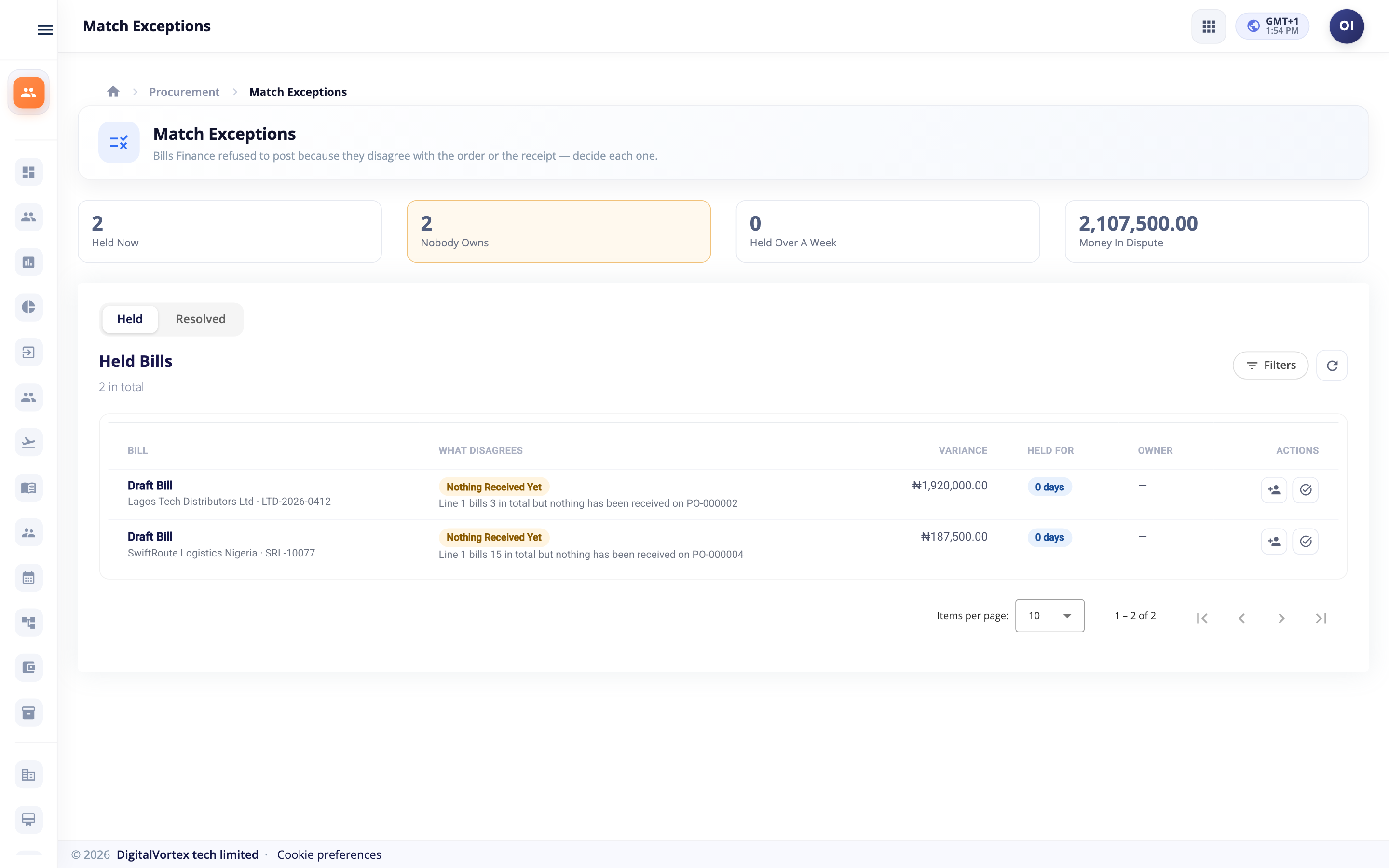
Open ProcurementMatch Exceptions. The numbers at the top are:
- Held Now: how many bills are held.
- Nobody Owns: how many have no owner yet.
- Held Over A Week: the ones getting old.
- Money In Dispute: the total variance, per currency.
The Held tab lists each bill with What Disagrees, the Variance and Held For (days). The days turn amber after 3 days and red after 7. The Resolved tab is the history.
Give it an owner#
Click the Assign icon on the row. Under Owner pick Who will chase this?, then save. The person must be a member of your workspace.
Resolve it#
- Click the Resolve icon on the row.
- Choose a Decision:
- Accept The Variance: Pay As Billed. You accept the difference. A Note saying why is required.
- Ask The Supplier For A Credit.
- Return The Goods.
- Reject The Bill.
- Save.
How often you resolve a supplier's exceptions as Ask The Supplier For A Credit is a sign that the supplier over-bills. Keep that in mind when you read the supplier's scorecard.
Set how strict the check is#
Open ProcurementProcurement SettingsMatch Tolerances. You need the PMS_SETTINGS_ADMIN permission.
With nothing set, Hubtoll holds a bill if it bills any quantity beyond what was received, or a price more than the lower of 2% or 5,000 above the order.
To change this, click to add a tolerance:
- Type a Name.
- Pick a Supplier, a Category, both, or neither. Empty means "any".
- Set Quantity Tolerance %: how much more than received a bill may claim. The default is 0.
- Set Price Tolerance % (default 2) and Price Tolerance Amount (default 5,000).
- Choose Use The Stricter Price Test. On: the stricter of the percentage and the amount decides. Off: the more generous one decides.
- Turn on Two-Way Match for services, so goods receipts are not needed.
- Click Add Tolerance.
How Hubtoll picks one when several apply: the most specific wins. Supplier and category beat either one, which beats your default (no supplier, no category). Priority breaks a tie, and the higher number wins. An Active switch lets you turn one off without deleting it.
Reports and supplier scorecards#
Open ProcurementProcurement Reports. Use Period and Apply to pick the dates. It opens on the last 90 days. A period can be up to about two years.
The Overview tab shows:
| Figure | What it means |
|---|---|
| Requests Raised (and how many are Ordered) | How many purchase requests started in this period. |
| Committed Value | The money promised on those requests. |
| Bought On Contract Or Catalog | The share of that value bought through a contract or the catalog. Higher is better. |
| Request To Order | The average days from submitting a request to raising its order. |
| Saved Against First Quote | What sourcing saved, from approved and ordered awards. See Sourcing. |
| Bills Held Now, Money In Dispute, Exceptions Resolved | The state of the match queue. |
Below that, lists show Spend By Supplier (bills posted in Finance), How It Was Bought (Catalog, Contract, Direct Purchase, Sourcing), By Category, Held Bills By Reason, and Supplier Papers Expiring Within 30 Days, which also lists papers that have already expired.
Supplier scorecards#
The Supplier Scorecards tab gives each supplier a mark for the period.
- Pick the dates and click Compute This Period (buyers only).
- Read each supplier's row: On Time, Price Accuracy, Quality, Relationship and Overall.
- To add the two marks only a person can give, click the grade icon on the row. Enter a Quality Score and a Relationship Score from 0 to 100, and Notes, then Save Score.
- On Time is the share of orders whose first goods receipt arrived by the expected date. The count of late ones shows beneath it.
- Price Accuracy is the share of billed lines that came in at or under the ordered price.
- Both are worked out from Finance for you and cannot be edited.
- Overall is the plain average of whichever of the four marks exist. There are no hidden weights.
- Computing a period again refreshes the figures and keeps the Quality and Relationship marks you gave.
Who can do what#
| To do this | You need |
|---|---|
| Send an invoice link, accept or return an invoice, assign or resolve an exception, compute scorecards | PMS_MANAGEMENT_EDITOR |
| See supplier invoices, held bills, reports and scorecards | PMS_MANAGEMENT_READONLY or a wider permission (invoices and exceptions need the editor) |
| Set match tolerances | PMS_SETTINGS_ADMIN |
| Post the bill in Finance | A Sales and Finance permission. See Sales and Finance |
| Send an invoice | Nothing. A supplier uses its private link |
See the permission reference.
Common questions#
A bill was held but nothing shows in Match Exceptions. Why?
Check the Held tab first, and clear any filter. If it is still missing, make sure the bill names a purchase order and that the Procurement connection is on. A bill that names no order is only checked for a duplicate invoice number.
Does a held bill block the supplier from being paid for other bills?
No. Each bill is checked on its own. Only the held one waits.
Can I turn the check off?
Yes, but for the whole company. An administrator switches off Connect Procurement to Sales & Finance in Sales and Finance. Then bills post without any comparison. To loosen the check for one supplier instead, add a tolerance for that supplier. See Set how strict the check is.
The supplier says the portal shows no orders.
Only orders that have been issued in Sales and Finance appear. A draft order is not shown. Also check that the supplier is approved, that it is linked to a Finance vendor, and that the Procurement connection is on. With the connection off, the portal shows no orders at all.
Can a supplier edit an invoice after sending it?
No. They can send a new one only after you return the first with a reason. The same invoice number then works again.
Where does the goods receipt come from?
From Sales and Finance, when someone records what arrived against the purchase order. See Buy: vendors, orders, bills and payments.