
The big picture#
When you buy something big, it is wise to ask more than one supplier for a price. In Procurement this is called sourcing. You create a sourcing event: a short form that says what you need, by when, and which suppliers may answer.
There are three kinds of event. Pick the one that fits.
| Kind | Hubtoll calls it | Plain meaning | Best when |
|---|---|---|---|
| Request For Quotation (RFQ) | Quotation | Suppliers send a price. You compare prices. | You know exactly what you want, and price decides. |
| Request For Proposal (RFP) | Proposal | Suppliers send a price and a plan. You score more than price. | Quality, skill or delivery time matter too. |
| Reverse Auction | Auction | Suppliers lower their prices live, one after another. | Many suppliers can do the job and you want the lowest price. |
Where everything lives#
Open Procurement from the product switcher, then click Sourcing in the left menu. You land on the Sourcing Overview. The list of events is the first page inside the group. It has two tabs:
- All Events shows every event, with its Status, how many suppliers have answered (Responses, for example 2 of 3 invited), the Estimate and when it Closes.
- Awards Awaiting Me shows awards that are waiting for your approval decision.
Click an event to open its page. The designer pages for the award's approval chain are also in this group: Award Forge Workflow and Award Forge Template. See Approvals and workflows.
How an event moves along#
| Status | What it means |
|---|---|
| Draft | You are still writing it. You can edit it. Suppliers know nothing yet. |
| Open For Quotes | Published. Suppliers have their links and can answer. (An auction reads Auction Open.) |
| Closed | The closing time has passed, or you closed it by hand. Bids can now be compared. |
| Awarded | An award was approved. |
| Cancelled | You stopped it. The supplier links no longer work. |
A published event closes by itself when its closing time arrives. You do not need to press anything.
Start a sourcing event#
There are two ways in.
- From a purchase request. A request that is above your sourcing threshold shows the status In Sourcing and a Start Sourcing button. Click it and the event opens with the title and items already filled in. After the event is awarded, the request becomes Ordered. See Purchase requests, contracts and change orders.
- On its own. Open ProcurementSourcing and click New Event.
- Fill in the Title, and choose the Type: Request For Quotation, Request For Proposal or Reverse Auction.
- Choose a Category and the Currency. Suppliers answer in this currency.
- Set when it ends. The label reads Quotes Close (or Auction Closes). Pick a date, then a time At. The time is in your company's time zone. The date must be today or later.
- In Suppliers To Invite, pick the suppliers. Only approved suppliers appear. Each one gets a private link. Nobody sees another supplier's quote.
- In What Is Needed, describe the job. Add Terms if you have any, such as delivery rules.
- Under Lines, add each item: a description, a quantity, and a unit such as each. You can add up to 200 lines.
- Click Save. It is now a Draft.
Special settings for a proposal#
A proposal event shows How Proposals Are Judged. Here you list the things you will score besides price, for example Technical approach. Give each one a weight (a percentage from 1 to 99). Price always takes the rest, so all the weights together always make 100. The form tells you what price is worth now. You can add up to 12 criteria.
Special settings for an auction#
An auction event shows Auction Rules:
| Setting | What it does |
|---|---|
| Bidding Opens (date and time) | When bidding starts. Leave it blank to open the moment you publish. |
| Starting Price (Total) | The most a first bid may be. Leave it blank for no ceiling. |
| Minimum Decrement | How much lower than their own last total each new bid must be. |
| Extend By (Minutes) | A bid in the last few minutes pushes the close out, so nobody wins by a last-second bid. Use 0 to turn it off. |
| Most Extensions | Stops the auction from being stretched for ever. |
| What Bidders See | Their Rank Only, or Rank And The Best Price. |
An auction is decided on price alone, so it takes no scoring criteria.
Publish and invite suppliers#
- Open the event and click Publish To Suppliers.
- Read the message and click Publish.
Hubtoll will refuse to publish in these cases:
| Message | What to do |
|---|---|
| Add at least one line before publishing | Add an item line. |
| Set a closing time in the future | Change the closing date or time. |
| Invite at least 3 suppliers before publishing (your number) | Your company set a minimum number of bidders in the Procurement Policy. Invite more suppliers. |
| Bidding must open before the auction closes | Move the opening time earlier. |
You can invite one more supplier later: open the event and use Invite Another Supplier, then Invite. You cannot do this for an auction once bidding has started.
What the supplier sees#
The supplier does not need a Hubtoll account. They open their private link and see a simple page with the company name, the items, your terms, and the closing time.
- They type a Price per unit and, if they like, a Lead time (days) for each line. They can also give an Overall lead time (days), a Quote valid until date and Notes. Then they click Submit My Quote.
- They have one bid. They can change it with Update My Quote until the event closes.
- If they cannot do it, We Can't Quote lets them decline, with an optional reason.
- In a proposal, they also see How Proposals Are Judged: your criteria and weights.
- The link stops working one day after the closing time, or if you cancel the event. They see This link is no longer valid.
In an auction the supplier must price every line. They see Your position (for example Leading, or #2 of 4) and Your next bid must total ... or less. When someone overtakes them, a message says so.
Watching the event#
Quotations and proposals: sealed until the end#
While the event is open, the page only says how many quotes have arrived, for example 2 quotes received so far. They stay sealed (nobody can see an amount) until the event closes. The history of the event records that a quote came in, but never the amount.
Auctions: live#
An auction shows the buyer a countdown (Bidding opens in, then Closes in), the rules, and a Price History table of every bid: the Time, Supplier, Total and Rank. A bid that pushed the close out is tagged Extended.
Close an event early#
You may close a quotation or proposal before its time.
- Open the event and click Close Now.
- Read the message and click Close Now again.
Cancel an event#
Click Cancel, write why it is being cancelled (required), and confirm. The suppliers' links stop working. You cannot cancel while an award is waiting for approval. Reject it or finish it first.
Compare the quotes#
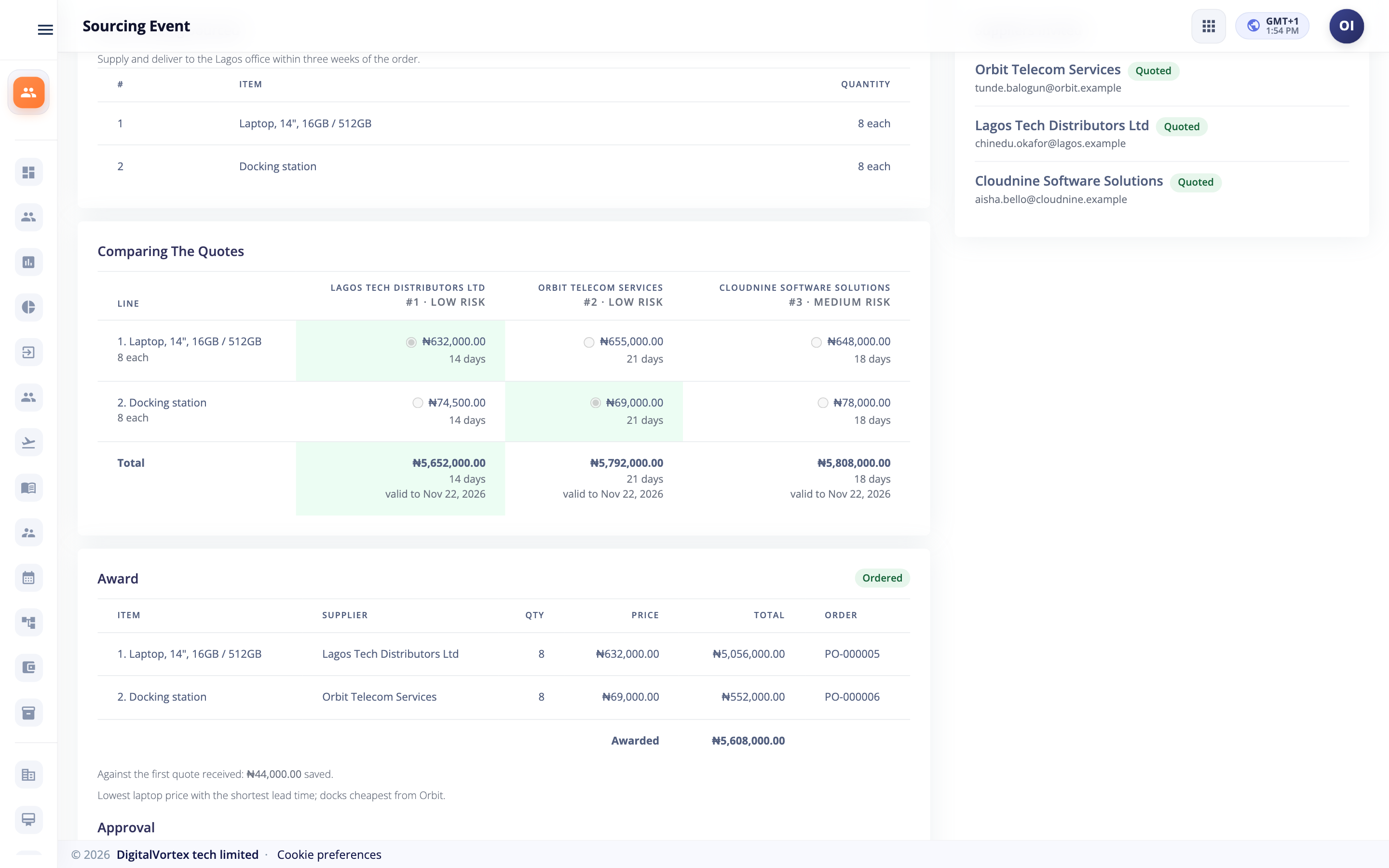
When the event has closed, the page shows Comparing The Quotes (an auction shows Final Standings). It is a table with one row per item and one column per supplier.
- Each cell shows the unit price and the lead time. The lowest price on a line is marked.
- The Total row adds each supplier's whole bid. Bids that priced everything are ranked from the lowest total, #1, #2 and so on.
- A supplier that skipped some lines is tagged partial. It is shown, but not ranked.
- Beside the supplier's name you see its risk level, for example Low risk, taken from the supplier's profile. See Suppliers.
- The quote's lead time and valid to date are shown under the total.
Score proposals#
For a proposal, an Evaluation table appears under the comparison.
- Click Score under a supplier. Only buyers can.
- Give each criterion a score from 0 to 10. A comment is optional.
- Click Save Scores. You can score some now and the rest later.
How the final number is worked out:
- Price is scored for you. The lowest total gets 10. Every other total gets 10 times (lowest total divided by its own total). So a bid 25 percent higher than the lowest scores 8.
- Each score is multiplied by its weight. Add them up and you get the Weighted Score (Out Of 100).
- A bid is ranked only when every criterion is scored. Until then it shows not fully scored.
- Scores are final once the event is awarded.
Award the job#
You can award once the event has closed (for an auction, once it has ended).
- In the comparison table, tick one supplier for each line. A line goes to one supplier. Different lines can go to different suppliers, so one award can be split.
- Check the figure shown beside Your choice.
- Under Why this choice?, write a short reason.
- Click Save Award.
- Click Submit Award For Approval and confirm with Submit.
The approval#
The award runs through its own approval chain, set up under Sourcing › Award Forge Workflow. Approvers find it under Awards Awaiting Me and decide on the event page. Like every approval in Hubtoll, whoever the chain names can decide. See Approvals and workflows.
If a chosen supplier stopped being approved while the award waited, the last approval is refused with ... is no longer an approved supplier, so this award can't be confirmed. Revise the award. Change the award and submit it again.
What happens after approval#
- The event becomes Awarded.
- Hubtoll raises one draft purchase order per awarded supplier in Sales and Finance. Each is priced from the supplier's own winning bid. You never type the prices again.
- Each line of the award shows its order number in the Order column.
- When every supplier has an order, the award is marked ordered. If the event came from a purchase request, the request becomes Ordered.
The orders are drafts. A person in Finance reviews and issues them. See Buy: vendors, orders, bills and payments.
If an order could not be raised#
Each supplier's order is made on its own. If one fails, the others are still raised, the award stays approved, and the note is written in the event's history. Fix the cause, then click Raise Missing Orders. It only makes the orders that are missing, never a second copy.
The usual cause is that Procurement is not connected to Sales and Finance. The message reads: Procurement isn't connected to Sales & Finance for this company yet, so it can't create or change Finance documents. An administrator turns it on in Sales & Finance › Settings (Procurement connection). See The Procurement connection. A missing Finance licence gives Sales & Finance isn't enabled for this company.
Who can do what#
| To do this | You need |
|---|---|
| Create, edit, publish, close, cancel and score events, and save an award | PMS_MANAGEMENT_EDITOR |
| See events and awards | PMS_MANAGEMENT_READONLY or a wider permission |
| Set the competitive sourcing threshold, minimum bidders and categories | PMS_SETTINGS_ADMIN |
| Design the award approval chain | PMS_MANAGEMENT_WORKFLOW_EDITOR |
| Approve an award | Nothing special. Whoever the chain names |
| Answer an invitation | Nothing. A supplier uses their private link |
See the permission reference.
Common questions#
Can I see the quotes before the event closes?
No. In a quotation or proposal, every amount is sealed from everyone, including you, until the closing time passes or you click Close Now. In an auction you do see each bid as it arrives.
Can a supplier change its quote?
Yes, until the event closes. It keeps one bid and the new one replaces the old. In an auction the new total must be lower than their last by at least the minimum decrement.
Can I invite a supplier who is not approved yet?
No. Only approved suppliers are listed. Approve them first. See Suppliers.
A supplier lost its link. What now?
Each link is emailed to the supplier's primary contact when you publish, so ask them to check that inbox first. Hubtoll shows the links on your screen only once, and there is no button to send one again today. Add a contact with a working email address in the supplier's profile before you publish. See Suppliers.
Why did my request not go out for quotes?
Only requests above your sourcing threshold go out. A request that buys from a contract skips sourcing. Read Purchase requests, contracts and change orders.
Where do I see how much we saved?
On the award, beside Against the first quote received. The Procurement Reports page also shows savings from sourcing. See Supplier invoices and bill matching.