
The selling journey in one picture#
Selling in Hubtoll follows the path a real sale follows. You do not have to use every step. Use the ones that fit your business.
| Step | What it means | Where |
|---|---|---|
| Quote | "Here is what it would cost." A price offer. | Quotes |
| Sales order | "Yes, we agreed." A promise to supply. | Sales Orders |
| Invoice | "Please pay us." The bill. This is the step that reaches your books. | Invoices |
| Payment | "We got the money." | Payments |
| Settled to your account | The money reached your bank (for online payments). | Settlement Account |
Quotes and sales orders do not touch your books. Only an invoice does, and only once you issue it. If you sell and collect on the spot, skip all of that and use a sales receipt (a cash sale).
All of it lives in Sales and FinanceSales & Receivables. Before you start, finish the checklist in Sales and Finance: how it works and how to set it up.
Add a customer#
A customer is a person or company you sell to. Add them once and reuse them on every quote, invoice and payment.
- Open Sales & ReceivablesCustomers and click Add customer.
- Type the Customer name. Optionally add a Display name, Email, Phone and a Billing address.
- Add the Tax ID (TIN) if you have it. Hubtoll hints "NIN (11 digits) or CAC RC/BN" and warns if the format looks wrong for a Registered customer.
- Set the choices in the next section.
- Click save.
The choices on a customer#
- Tax treatment says how tax applies to this customer.
- Registered: taxed normally, using whatever tax group each invoice line carries.
- Exempt, Zero-rated and Export: no tax is charged today. They differ only in how the sale is reported. Exempt means outside the tax. Zero-rated means taxable at 0% and still reportable. Export means zero-rated and reported as an export.
- See VAT and withholding tax.
- Currencies (optional) lists the currencies you bill this customer in. The first one is their default. Your base currency is always allowed on top. See Currencies and exchange rates.
- Credit limit (optional) is a number you record for reference. It is shown on the customer page. Hubtoll does not stop an invoice that goes over it.
- Payment terms (days) means "Net-N": the customer should pay within N days. It sets the due date on new invoices. Leave it blank for "due on receipt". A due date you type on the invoice always wins.
Each customer needs a unique email and a unique name. If not, you see "A customer with this email already exists" or "A customer with this name already exists".
Add items to sell#
An item is something you sell: a service, a product, or a stocked good. Items carry the price and the accounts that the sale will use, so invoices fill in by themselves.
- Open Sales and FinanceProducts & ServicesProducts & Services and click Add item.
- Fill in Item name, and optionally a SKU (a short code).
- Choose the Type: Service, Non-inventory or Inventory (stock-tracked).
- Pick the Price currency, then fill in the sales and purchase prices.
- Choose the Income account (a sale credits this). This is required.
- For services and non-inventory items, choose the Purchase/expense account (a purchase debits this). This is also required. A stocked item does not need it.
- Optionally pick a Default sales tax and Default purchase tax.
- Click save.
For stock items you also set the Inventory asset account, COGS account, Reorder level and the opening stock. Stock is explained in Stock and inventory.
Prices in other currencies#
An item has one main price. You can also give it a price for another currency. In the item form, find Prices in Other Currencies and click Add a currency. Each row has a Currency, Sells for and Costs.
When a document is in that currency, Hubtoll uses your figure exactly. No exchange rate, no odd decimals. The reverse is also true: an item with no price in a document's currency cannot be put on that document. The line stays blank and Create is disabled. A banner reads "An item on this invoice has no USD price", with an Add USD price button that opens the item for you. More in Currencies and exchange rates.
An item has one price per currency. Giving the same currency twice shows "Two prices given for X. An item has one price per currency."
Send a quote#
A quote is a price offer. It never posts to your books.
- Open Sales & ReceivablesQuotes and click New quote.
- Pick the Customer. Optionally pick the Sales agent (who brought in this sale).
- Check the Currency, Quote date and Valid until.
- Add lines: pick the Item, edit the Description if needed, and set Qty, Rate, Discount and Tax. Click Add line for more.
- Click Create draft.
- When it is ready, click Finalise: assign the quote number on its row, and confirm.
- Click Email to customer and confirm Email this quote?.
A quote moves Draft, Sent, Accepted, Converted. After the customer answers, click Mark accepted or Mark declined. To go on, use Convert to sales order or Convert to invoice. Converting to an invoice makes a draft invoice. You still need to issue it.
If you try to email a draft you see "Send the quote first. A draft has no quote number to show the customer." If you try to resend, the button reads Resend.
Confirm a sales order#
A sales order is for when you want a firm promise before invoicing. It also does not post to your books.
- Open Sales & ReceivablesSales Orders.
- Click New sales order, or use Convert to sales order on an accepted quote.
- Click Confirm on its row and confirm the question. After this it cannot be edited.
- When you are ready to bill, click Create invoice.
An order goes Draft, Confirmed, Invoiced. You can Cancel order before it is invoiced. An order that has already been invoiced cannot be cancelled.
Create and issue an invoice#
An invoice is the bill you send. It is the first document that reaches your books.
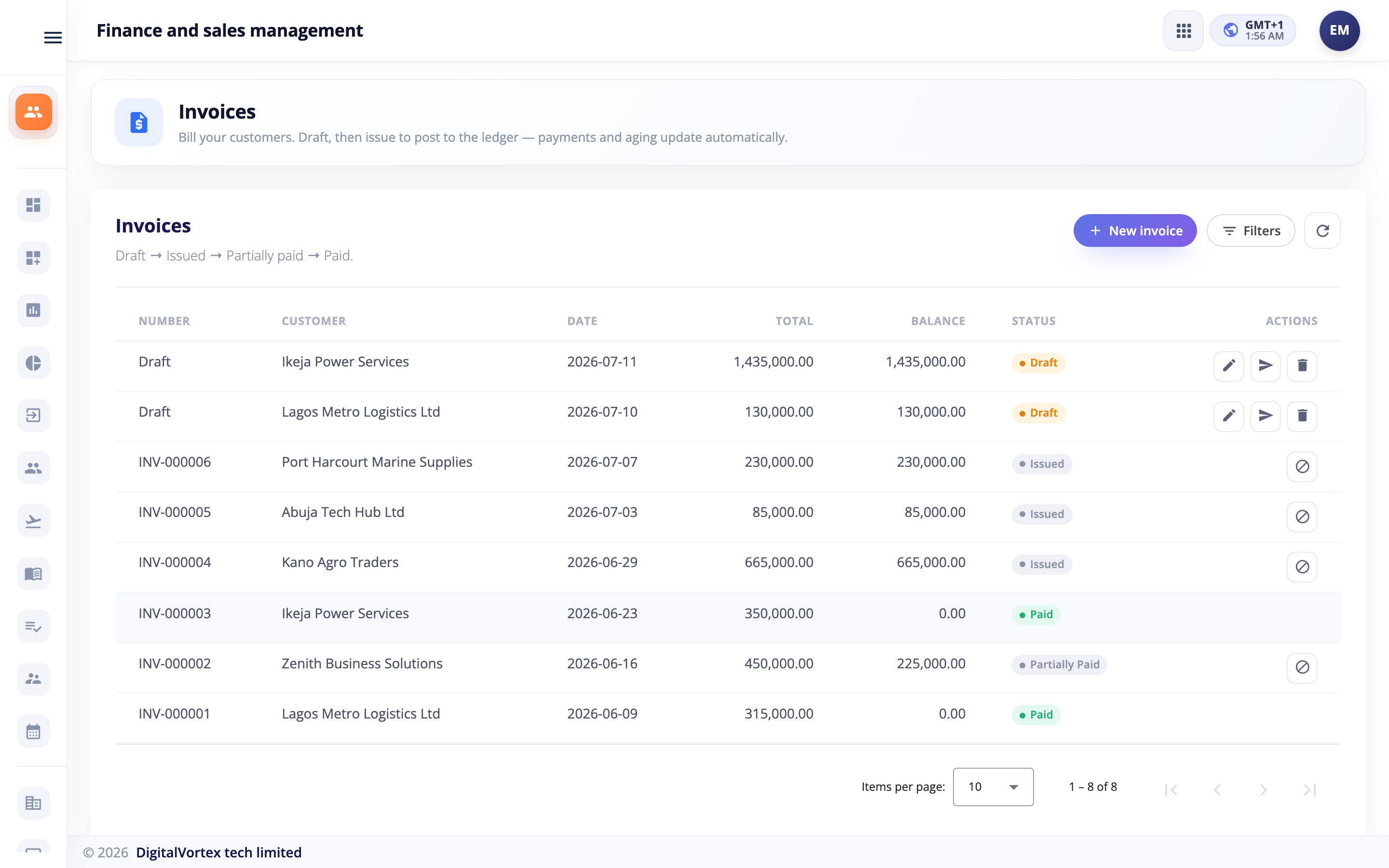
- Open Sales & ReceivablesInvoices and click New invoice.
- Pick the Customer. If the customer has money on account, a card appears (see the next section).
- Check Currency, Invoice date and Due date. Optionally pick a Sales agent.
- Add your lines. Each line has an item, quantity, rate, discount and tax.
- Optionally add a Document discount. It is shared across the taxable lines before tax.
- Click Create draft. The invoice shows Draft instead of a number.
- On its row, click Issue and confirm Issue invoice?.
If your company needs approval#
Some companies want a second person to check every invoice. If an approval chain is set up, the Issue button reads Submit for approval. The invoice then shows Pending Approval with an hourglass. It posts to your books only after the last approver says yes. If an approver rejects it, it goes back to Draft.
Use the Awaiting me tab on the Invoices page if you are an approver. A badge reads Awaiting you on rows waiting for you. The chain itself is built under Sales & ReceivablesInvoicesForge Workflow. No chain exists until someone builds one. See Approvals and workflows.
Approval for quotes, payments, customers and the rest#
Every document type in Sales & Receivables can have its own approval chain, not just invoices. Each one is built under that type's own Forge Workflow link, for example Sales & ReceivablesQuotesForge Workflow. When a chain exists:
- A quote, sales order, credit note or delivery note waits for approval when you send, confirm, issue or dispatch it. It keeps no number and moves nothing until the last approver says yes. If an approver rejects it, it stays a draft.
- A payment is saved as Pending Approval. It does not touch the invoice or your books until it is approved. A payment collected online is different: the money has already moved, so it is recorded straight away.
- A new customer waits for approval and cannot be used on any document until it is approved. Editing an existing customer applies at once.
On each list page, a waiting row shows Awaiting approval. If you are the approver, open the Awaiting Me tab: it counts what waits on you, and clicking the eye on a row opens the decision panel. While a document is with an approver, its row and its own page offer no edit, send or delete buttons, because nothing can change until the decision is made. Each type's Overview page lists how many are Awaiting approval and how many were Sent back for changes.
A workflow can treat documents differently depending on how they were made. In a Condition step, the field How the quote was created (each document type has its own) tells Created by hand apart from Created automatically, a document Hubtoll made from another (for example a sales order converted from a quote or an invoice raised by a recurring profile). Use it to skip approval for documents that were already approved at an earlier step.
Email the invoice#
- On the invoice row, click Email to customer.
- Confirm Email this invoice?.
The customer receives an email with the invoice as a PDF and a pay link (a web page where they can pay by card or transfer). The row then shows the Emailed chip. You can send it again any time with Resend.
You cannot email a draft, an invoice waiting for approval or a voided invoice. If the customer has no email, you see "This customer has no email address on file, so the invoice cannot be sent. Add one on the customer record and try again."
Prefer to share the link yourself? Click Copy pay-online link. If the icon is greyed out, hover it: the invoice is below the online payment minimum, or that currency cannot be collected online.
Other messages you might see#
- "An invoice needs at least one line."
- "An invoice total must be greater than zero."
- "An income account is required (line N)". A free-text line with no item needs an account.
- "Only a draft invoice can be edited / deleted."
- "A posted invoice with inventory lines cannot be voided. Issue a credit note..."
The invoice page#
Click an invoice row to open its full page. You will see its lines and totals, the Payment History (with a View link to each receipt), a Settled to Your Account table for online payments, a link to the Posted journal, and the approval trail. Every linked record is clickable, so you can follow a sale from quote to payment to journal entry.
Get paid: record a payment#
When a customer pays you outside Hubtoll (bank transfer, cash, card terminal), record it.
- Open Sales & ReceivablesPayments and click Record payment.
- Pick the Customer, Currency and Payment date.
- Type the Amount received.
- Pick the Method: Bank transfer, Card, USSD, Mobile money, Cash or Manual / other.
- Choose Deposit to (bank / cash account). This is required. If the cash is not banked yet, pick Undeposited Funds.
- In Apply to Open Invoices, tick the invoices this pays. Click the bolt icon, Fill balance, to fill an invoice's remaining amount.
- Click Record payment.
Partial payments#
A customer can pay only part. Apply less than the invoice total. The invoice shows Partially paid and keeps the rest as its balance. Pay the rest later with another payment.
Overpayments: money on account#
If the customer pays more than the invoices you apply, the extra is kept on account. Hubtoll calls it a Customer Advance. It is money you hold for them. You see it in the On account column.
Next time you raise an invoice for that customer, a card appears: "This customer has ₦X on account". Keep Apply the credit when this invoice is issued switched on and Hubtoll uses the money automatically at issue. You can also apply it later from the invoice page with Apply credit, or from the payment row with Apply credit to invoices.
Credit is used oldest first and never goes past the balance due.
Withholding tax at payment#
In some countries, a business customer keeps back a small part of what they owe and pays it to the tax office for you. This is withholding tax (WHT). On the payment form you fill WHT rate (optional, fills the amount) or type WHT withheld by customer (optional). The invoice clears in full, even though you banked a bit less.
The WHT must be applied to invoices. You see "Withheld tax must be applied to invoices; it cannot be kept on account." How this works, with numbers, is in VAT and withholding tax.
Fix a payment#
A payment is never edited. On its row:
- Unapply (release on account) takes the money off an invoice and keeps it on account. An accountant does this.
- Void payment cancels the whole payment, restores every invoice's balance and cannot be undone. An accountant does this.
Payment messages you may see: "A payment amount must be greater than zero", "Applied amount exceeds the payment amount (cash + WHT)" and "Applied amount exceeds the balance due on invoice X".
Sell and collect on the spot: receipts#
A sales receipt is a cash sale. There is no invoice and nobody owes you afterwards. The money goes straight to your bank or cash account.
- Open Sales & ReceivablesReceipts and click New sales receipt.
- Optionally pick a Customer and Sales agent. Pick the Method and Deposit to.
- Add the lines and save.
The Receipts page lists every acknowledgement of money received. Use the pills All receipts, Manual (cash sales you made here) and From invoice (receipts made when invoices were paid). Open any row to View or Download the PDF. If a receipt PDF is missing, click Generate receipt. It will not email the customer again.
Give money back: credit notes#
A credit note is the opposite of an invoice. Use it when a customer returned goods, was overcharged, or deserves goodwill.
- Open Sales & ReceivablesCredit Notes and click New credit note.
- Fill in the customer and lines, and click save to create a draft.
- Click Issue on its row. This posts it to your books and reduces what the customer owes.
- Click Apply to invoices to use the credit against open invoices.
- Or click Refund to pay the money back. In Refund Credit Note, set the Refund amount and Pay from (bank / cash account) and click Refund. An accountant does this.
You can refund only up to the credit still available: "The refund must be between 0.01 and the available credit." A credit note that has been applied or refunded cannot be voided.
Bill the same thing every month: recurring invoices#
A recurring invoice is a saved template that makes a new invoice on a schedule.
- Open Sales & ReceivablesRecurring Invoices and click New recurring invoice.
- Give it a Profile name and pick the Customer.
- Choose the Frequency: Weekly, Monthly, Quarterly or Yearly.
- Set the Start date, and optionally an End date.
- Add the lines. Optionally switch on Auto issue each generated invoice.
- Save.
Nothing is created until the profile falls due and runs. You can run one yourself with Run now, or click Run due now to run every profile that is due. Row icons also let you Edit, Pause, Resume or Delete. Deleting a profile does not touch invoices it already made.
If your company has an invoice approval chain, an auto-issued invoice goes to approval instead of posting. If one profile has a problem, it does not stop the others.
Ship goods before billing: delivery notes#
A delivery note records stock leaving before you invoice. Open Sales & ReceivablesDelivery Notes and click New delivery note. It goes Draft, Dispatched, Invoiced. Dispatch takes stock out at cost. Convert to invoice makes a draft invoice for exactly what you dispatched.
Only stock items can be shipped: "A delivery note can only ship INVENTORY items." An invoice made from a delivery note cannot be voided; issue a credit note instead. Stock details are in Stock and inventory.
Track who made the sale: sales agents#
A sales agent is the person who brought in a sale. Quotes, invoices, credit notes, receipts, recurring invoices and delivery notes all have an optional Sales agent field. The credit follows the sale from quote to order to invoice.
Open Sales & ReceivablesSales Agents to see a leaderboard: Invoiced, Collected (cash actually received), Outstanding, Net sales, Invoices and Quote → sale. Use the filter to pick the period. Click a row for that agent's scorecard.
A person with the Sales Agent permission sees only the sales credited to them or raised by them. A deal won in CRM can create a draft invoice that takes the deal owner as the agent. See Pipelines and deals.
Let customers pay online#
Every issued invoice can have a pay link. It opens a public page with no login. The customer sees your name and logo, the invoice lines, the totals and any payments so far.
- The customer opens the link, from your email or from you.
- They type their email address. It is where the receipt will go.
- They pay by card or bank transfer.
Things to know:
- If the link is wrong or expired, the page says This Payment Link Isn't Available.
- Only an issued, unpaid invoice can be paid online.
- There is a minimum amount for online payment in each currency. Below it you see "Online payment starts at ...". Collect it by transfer and record the payment yourself.
- If the card gateway cannot take the invoice's currency, the customer is charged the equivalent in your base currency. The page shows Charged in NGN, Invoiced and You pay, and "Rate fixed on this invoice". Your books still record the payment in the invoice's currency. See Currencies and exchange rates.
Instant settlement to your bank#
If you set up a settlement account (see Sales and Finance: how it works and how to set it up), money collected through a pay link goes to your bank automatically, minus the platform charge.
The platform charge is Hubtoll's fee for collecting the payment. It is taken out of what you receive. Your customer still pays the invoice amount and sees no extra fee. Your books record the charge as Payment Processing Charges. Open Finance SettingsSettlement Account to see each payout with Collected, Platform charge, Paid to you and Status.
The invoice's last step is called Settled to your account. If a payout fails, the status shows Failed and you can ask Hubtoll support to look at it. If you have no active account yet it shows Awaiting account and is sent once you add one.
See who owes you#
- AR Aging (AR means accounts receivable, money owed to you) groups what customers owe by how late it is: Current, 1–30, 31–60, 61–90 and 90+ days, with a Total. Pick an As of date to see the past.
- Customer Statements shows, for each customer, the opening balance, charges, payments and closing balance. Pick a customer to see their running ledger, like a bank statement.
More reports are in Reports and closing the year.
Who can do what#
| You want to | You need |
|---|---|
| See quotes, invoices, payments | Finance Management Read-Only (FIN_MANAGEMENT_READONLY) |
| Create and edit drafts, customers, items | Finance Management Editor (FIN_MANAGEMENT_EDITOR) |
| Issue invoices, record payments, send quotes, make receipts, issue credit notes | Finance Management Initiator (FIN_MANAGEMENT_INITIATOR) |
| Void invoices, void or unapply payments, refund credit notes | Finance Accountant (FIN_ACCOUNTANT) |
| Raise and see only your own sales | Sales Agent (SALES_AGENT) |
| Approve an invoice sent for approval | Nothing extra. Be named in the workflow. |
Everyone also needs a Sales and Finance seat. See Roles: give people the right access.
Common questions#
My invoice shows Draft instead of a number. Why?
Drafts have no number yet. The number (INV-) is assigned when you Issue it.
Can I change an invoice after issuing it?
No. Void it (an accountant does this) or raise a credit note. If it has been paid, unapply the payments first.
A customer paid twice by mistake. What now?
Record both payments. The extra stays on account as a Customer Advance. Apply it to a future invoice, or ask your accountant how to pay it back. If you recorded something wrong, Void payment and record it again.
Why can I not put an item on my USD invoice?
The item has no USD price. Open the item and use Prices in Other Currencies to add one. Hubtoll does not convert item prices on sales documents.
The status says Sent but my customer says they never got the quote.
Sent only means the quote has a number. Look for the Emailed chip. If it is missing, click Email to customer.
Where do I set the approval chain for invoices?
Under Sales & ReceivablesInvoicesForge Workflow. See Approvals and workflows.